Claude PDF reading means uploading a PDF to Claude so it can read the document, answer questions about it, summarise it, extract key points, and help you work with the text inside; this guide from independent reference site c-ai.chat explains what it does well, where it fails, and when to use the web app versus the main Claude guide.
- What it does at a glance
- How it works
- When this feature actually helps
- What it can’t do
- Other questions readers ask
- The honest take
What it does at a glance
Claude can read uploaded PDFs in the Claude app and through Anthropic’s API tooling, then use the document as context for summarising, question answering, comparison, drafting, and analysis. In practice, it works best on text-heavy PDFs such as reports, contracts, manuals, slide exports, and academic papers, and it is less reliable on scans, messy layouts, or files where the important information lives inside complex visuals rather than readable text.
- Upload PDFs to ask questions about the file
- Best on text rather than poor scans or image-only pages
- Useful for summaries, extraction, comparisons, and drafting
- Available across Claude workflows including app features and developer tools
If you want the bigger product context first, see our guides to Claude features and Claude models. PDF reading is not a separate model. It is a document-handling workflow layered onto Claude’s normal reasoning and language capabilities.
How it works
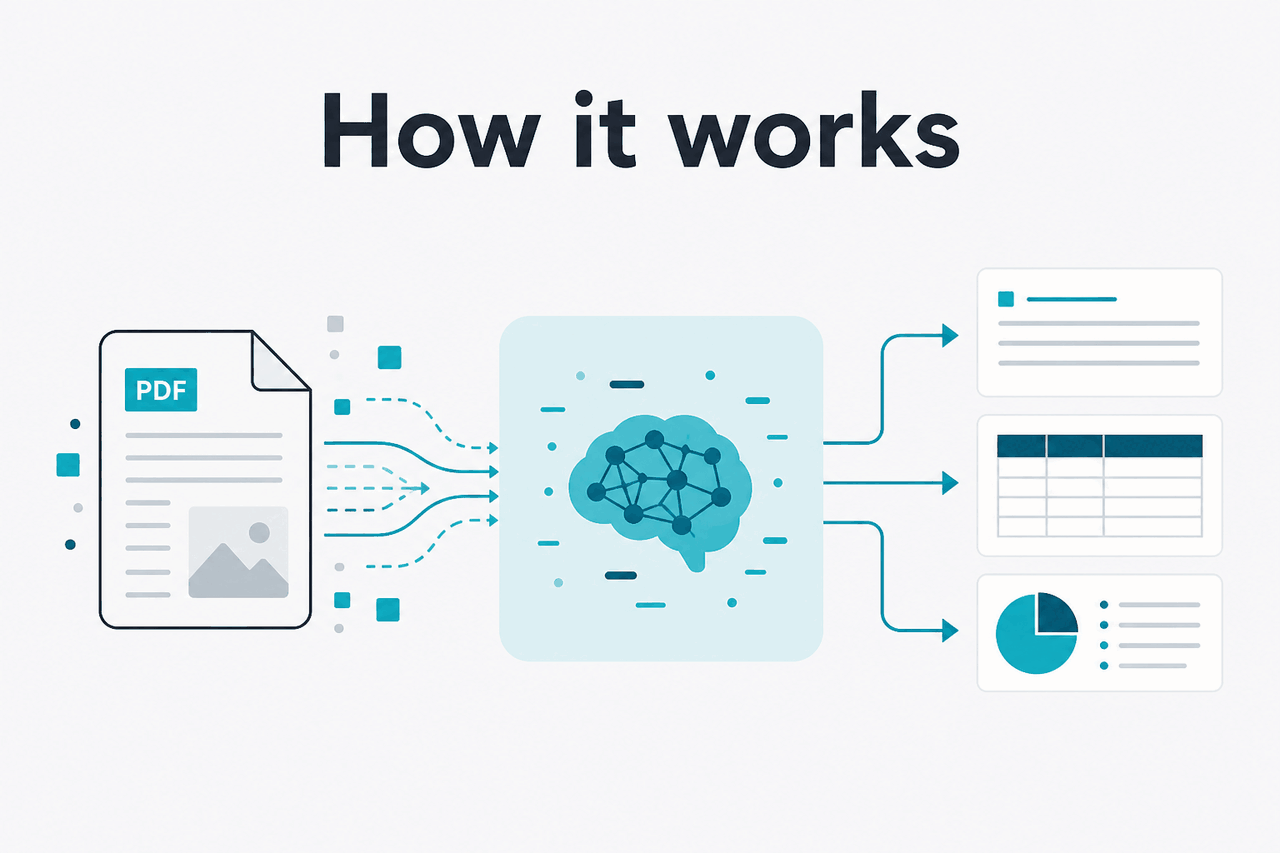
At a basic level, Claude PDF reading works by taking the contents of your uploaded file and turning them into context the model can process. If the PDF contains machine-readable text, Claude can usually interpret that text directly. It then answers based on what it can recover from the document plus your prompt. That is why prompts like “summarise section 3”, “list all deadlines”, or “compare this contract to the previous version” often work well.
The important detail is that Claude is not “understanding the PDF format” in some magical way. It is handling extracted document content, layout cues, and sometimes visual structure well enough to reason over the file. Results depend heavily on document quality. Clean digital PDFs usually perform better than scans, low-resolution exports, handwritten notes, or forms with awkward columns and tables. If you need programmable document workflows, the same general pattern applies through the Claude API, where developers send files or document content as model input.
Worked example
Reviewing a 40-page policy PDF
Claude can save time on the first reading pass, but you still need a human check for exact wording and edge cases.
That distinction matters. Claude is often strong at helping you navigate a long PDF, find likely answers, and produce a usable summary. It is weaker when the task depends on pixel-perfect layout interpretation, exact page rendering, or facts hidden in diagrams it cannot reliably parse from the file.
When this feature actually helps
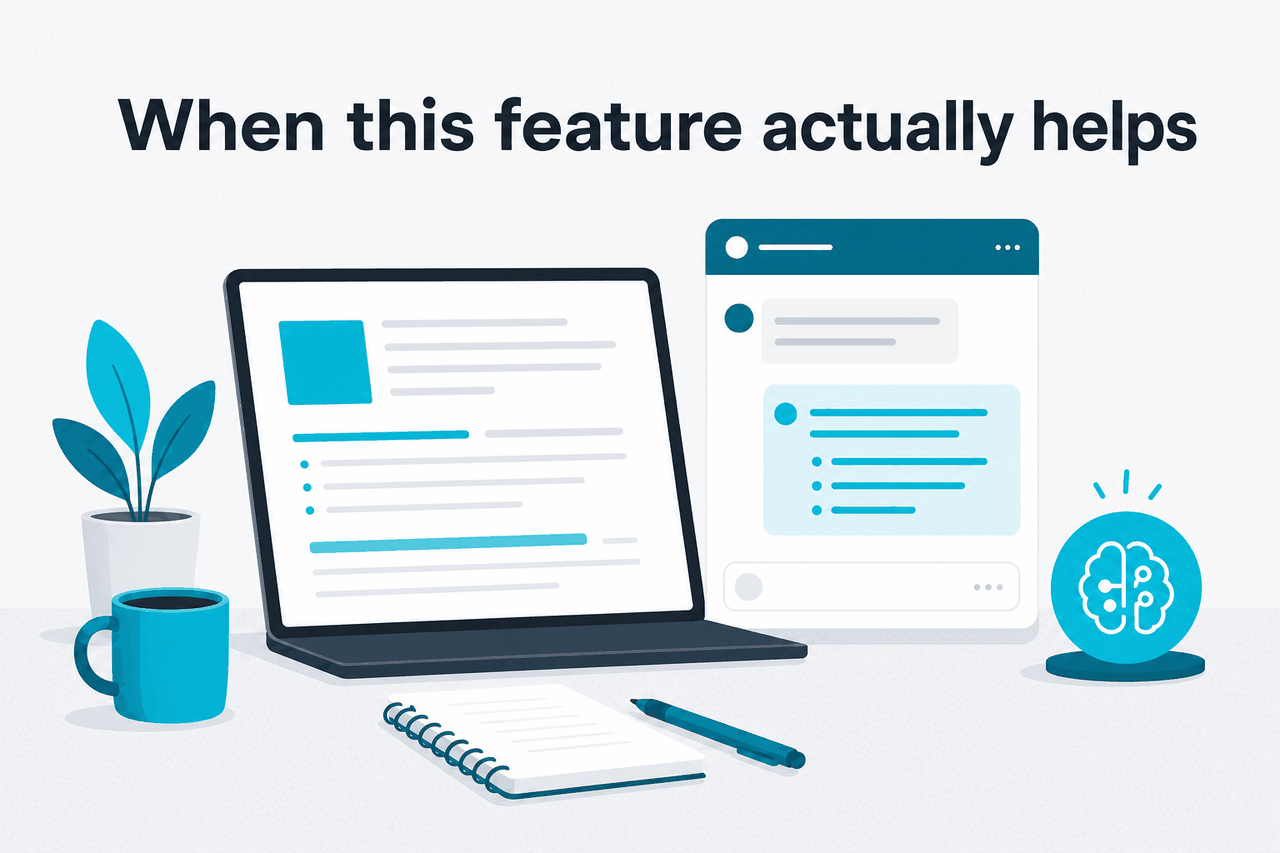
Claude PDF reading helps most when the hard part is not opening the file but understanding it quickly. If you have a long document and a specific goal, Claude can act like a fast first-pass analyst. The value is speed, structure, and question answering over document text.
- Summarising long reports: annual reports, white papers, investor decks exported as PDFs, research papers, and procurement documents.
- Extracting specific details: deadlines, clauses, risks, named entities, action items, pricing terms, or policy exceptions.
- Comparing documents: two contract versions, an old policy versus a new one, or multiple vendor proposals.
- Rewriting for a different audience: turning a technical PDF into a plain-English brief, FAQ, or executive summary.
- Turning documents into working material: draft meeting questions, onboarding notes, study aids, or implementation checklists.
Pick when
- You have a text-heavy PDF and a clear question
- You need a quick summary before reading the whole file
- You want key points extracted into bullets or tables
- You are comparing multiple written documents
- You can verify important outputs afterward
Skip when
- The PDF is a poor scan or mostly images
- The task depends on exact legal, financial, or medical wording with zero tolerance for error
- You need guaranteed OCR quality on messy handwritten pages
- The answer depends on charts, visual annotations, or page layout details Claude may miss
- You need a formal records workflow rather than an AI assistant pass
For professionals, the sweet spot is “help me get oriented and produce a strong draft.” That includes marketers reviewing research PDFs, founders scanning contracts, students working through papers, and developers pulling requirements from documentation exports. If your workflow extends into code or automation after the document review step, our Claude Code guide covers where document analysis meets development work.
What it can’t do
Claude PDF reading is useful, but it is not a perfect document reader and it should not be treated as a source of guaranteed extraction accuracy. The model can miss details, flatten formatting, misread tables, or answer confidently when the document is ambiguous. For high-stakes work, use it as an assistant, not as the final authority.
- Scanned PDFs can fail: if the file is basically an image, performance depends on how well text can be recovered.
- Complex tables may break: merged cells, footnotes, and multi-column layouts can be misinterpreted.
- Visual-heavy files are weaker: charts, diagrams, and annotated figures may not be captured reliably.
- Page references can drift: when you ask for exact page numbers, the mapping is not always dependable.
- Hidden omissions happen: Claude may leave out a clause or edge case while still producing a polished summary.
- It does not replace review: legal, compliance, finance, and medical decisions still need human verification.
A practical rule: the more your question depends on exact formatting, exact wording, or exact numeric extraction, the less you should trust a single-pass answer. Ask for citations from the document, then verify against the original PDF.
Other questions readers ask
People searching for claude pdf reading usually also want to know how reliable it is, whether it can summarise long documents, and what kinds of files work best. These are the short answers.
If your question is really about model choice rather than document upload, use our model comparison guide. If it is about the broader set of Claude abilities beyond PDFs, start with our feature overview.
The honest take
Claude PDF reading is genuinely useful for reading long text documents faster, asking targeted questions, and turning dense files into workable notes or drafts. It is not a substitute for careful review, and it becomes much less reliable when the PDF is a scan, has complicated tables, or depends on visual interpretation.
If your job is “help me understand this document quickly,” Claude is a strong option. If your job is “give me an exact, audit-safe extraction with no misses,” treat Claude as an assistant and verify every important point against the original file and Anthropic’s official product documentation at claude.ai.
Independent guide. Not affiliated with Anthropic. For the official Claude product, visit claude.ai.
Last updated: 2026-05-12