c-ai.chat is an independent guide to Claude, and if you are searching for claude code allowed tools, the short answer is this: Claude Code lets you control which tools the agent may use during a coding session, so you can allow safe actions, restrict risky ones, and keep automation inside rules that fit your repo, machine, or team workflow.
This page is for developers, team leads, and security-conscious users who want to understand what tool restrictions are, how they shape Claude Code’s behaviour, and when to tighten or loosen them. For the broader product context, see our Claude Code guide, plus related explainers on Claude features, the Claude API, and Claude pricing.
- The short answer
- How it works
- What you’d actually do with it
- Vs. the alternatives
- Other questions readers ask
- The honest take
The short answer
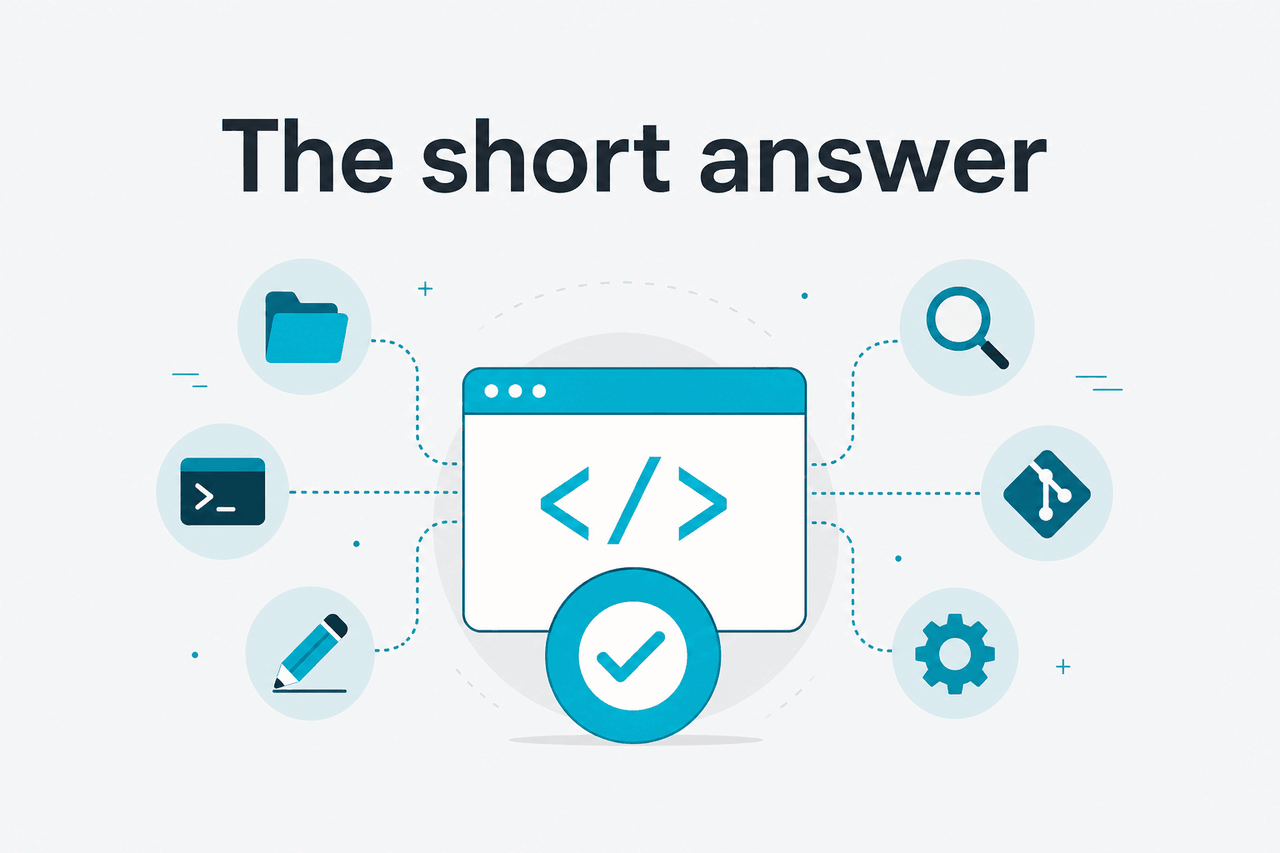
Claude Code allowed tools are the permissions and restrictions that decide which actions Claude can take on your behalf inside a coding workflow. In practice, that means you can let Claude inspect files, edit code, run selected commands, and use approved helpers, while blocking sensitive or destructive actions unless you explicitly permit them.
That matters most if you want agentic help without giving an AI open access to your terminal or project. The feature is useful for solo developers who want guardrails, and even more useful for teams that need repeatable rules around code edits, shell commands, and access to local resources.
- What it does · limits which tools Claude Code may call
- Where it runs · inside Claude Code coding workflows on your machine
- What it costs · depends on your Claude plan and underlying model usage
- Who it’s for · developers who want safer, more predictable automation
Anthropic positions Claude Code as a coding agent that can work across your codebase and terminal, but the value of allowed tools is not speed alone. It is control. If you are using an AI to modify a repo, run tests, or propose shell commands, you need a clear boundary between what the model may do automatically and what still requires your approval.
How it works

At a high level, Claude Code reasons about a task, decides whether a tool would help, and then tries to use only the tools that are available in that session. “Allowed tools” is the layer that narrows that menu. If file reads are allowed, Claude can inspect your repo. If edits are allowed, it can propose or apply changes. If shell execution is limited, it may need your confirmation before running a command, or it may be blocked from running it at all.
Engineers should think of this as a policy boundary between the model’s planning and the environment’s execution. The model may be capable of suggesting many actions, but the runtime decides which actions are actually exposed. That separation is useful because it reduces accidental risk. A model can still reason about how to fix a build, but it does not automatically get unrestricted command execution just because it knows the right command.
In real use, the workflow usually looks like this: you start Claude Code in a repo, the agent reads files to build context, you ask it to change or investigate something, and the tool policy determines whether it can inspect, edit, run checks, or ask for approval. The stricter your tool list, the more Claude behaves like a guided assistant. The broader your tool list, the more it behaves like an active coding agent.
-
Start Claude Code in your project
Open the repo you want to work on and launch Claude Code in that directory so the agent can access project context that you choose to expose.
-
Review the available tools
Before a serious task, check which actions are permitted: file reads, file edits, shell commands, search, or other execution helpers available in your setup.
-
Ask for a bounded task first
Start with something narrow such as
find the failing test and explain the errorrather thanfix everything. This shows how Claude behaves under the current restrictions. -
Approve or deny sensitive actions
If Claude wants to run a risky command, modify many files, or use a tool outside your comfort level, you can require confirmation or keep that action blocked.
-
Tighten or expand the policy as needed
For debugging, you might allow test commands. For production-adjacent repos, you may keep shell access narrow and let Claude focus on analysis and patch generation.
The main engineering trade-off is simple. More allowed tools usually means fewer manual steps and better end-to-end task completion. Fewer allowed tools usually means better safety and easier review. Neither choice is always right. A local scratch project and a regulated production codebase should not have the same defaults.
Pick when
- You want Claude Code to act within explicit guardrails
- You need predictable behaviour across repos or team members
- You want to reduce the chance of unsafe shell execution
Skip when
- You expect fully unrestricted agent behaviour in every session
- You are not willing to review permissions or approvals
- Your workflow depends on custom tools Claude cannot access
What you’d actually do with it
The easiest way to understand claude code allowed tools is to look at concrete work. The feature is less about abstract security policy and more about day-to-day choices: should Claude be able to read logs, rewrite files, run tests, install packages, or touch deployment scripts? Different tasks need different permission levels.
Here are realistic examples of where tool restrictions help.
1. Safe code review without code execution
If you only want architectural feedback, style fixes, or bug spotting, you can allow file reading but keep command execution blocked. That gives Claude enough context to inspect source files and explain issues without changing the environment.
Review this repository for:
- dead code
- obvious null handling bugs
- duplicated utility logic
Do not change files or run commands.
This setup works well for first-pass code review, onboarding to a new repo, or auditing a pull request before a human review. Claude can still be useful even when its tools are tightly constrained.
2. Controlled refactor with file edits allowed
Suppose you want to rename a service, update imports, and keep the patch limited to one package. Here, editing tools are useful, but you may still block shell commands to avoid unnecessary execution.
Rename BillingManager to InvoiceManager in /src/services.
Update imports and tests in the same package only.
Do not run package installs or git commands.
This kind of boundary is practical. Claude can make surgical edits, but it cannot expand the scope into unrelated directories or start running commands you did not ask for.
3. Debugging with test commands allowed, but not destructive shell access
Debugging often needs both file access and limited command execution. A common pattern is to allow safe test or lint commands while blocking package installation, network-heavy scripts, or cleanup commands that could remove files.
Investigate why the auth tests fail.
You may read files, edit files, and run the test suite for auth only.
Do not install dependencies, delete files, or run git reset.
With that boundary, Claude can inspect the failing path, adjust the code, and validate the result, but it stays inside a narrow execution lane. That is often the sweet spot for real engineering work.
4. Team workflow for a shared repository
On a shared codebase, a lead engineer may want everyone using the same guardrails. For example, Claude can read and patch application files, but deployment scripts and secrets-related paths remain out of scope. This reduces variance between developers and makes AI-assisted changes easier to review.
Worked example
Limit Claude Code to safe app-layer work
/src and testsClaude still helps with real coding work, but it cannot wander into the parts of the repository that carry higher operational risk.
5. Explaining a migration plan before any changes happen
Sometimes the right use of Claude Code is not editing at all. You can restrict tools so the agent only reads your codebase, then ask for an execution plan that a human approves before any write access is enabled.
Inspect the Express app and propose a migration plan to Fastify.
List files that would change, likely risks, and test gaps.
Do not modify files yet.
This approach is especially good for larger refactors. It separates planning from execution, which is often the safest way to work with an AI coding agent.
Vs. the alternatives
People searching for claude code allowed tools are usually comparing Claude Code with other AI coding products such as Cursor, GitHub Copilot, or Sourcegraph Cody. The important difference is not just model quality. It is how each tool handles action-taking, environment access, and user control.
Exact behaviour differs by version and configuration, so check each vendor’s current docs before adopting a tool. Still, the trade-offs below are a fair way to think about them.
| Tool | Strength | How tool restrictions matter | Trade-off |
|---|---|---|---|
| Claude Code | Strong repo reasoning and agent-style workflows | Useful when you want explicit control over reads, edits, and command execution | Works best if you are willing to review permissions and approvals |
| Cursor | Tight editor integration and fast coding flow | Good for in-editor agent work, but policy control depends on setup and product behaviour | Can feel more IDE-centric than terminal- or repo-policy-centric |
| GitHub Copilot | Wide adoption and familiar IDE experience | Strong for suggestions and assisted coding; less often the first choice for tightly bounded repo agents | May be less flexible if you want a more explicit tool-permission mindset |
| Sourcegraph Cody | Code search and large codebase context | Helpful for understanding codebases; action boundaries depend on the environment and product mode | Often strongest in search and context workflows rather than broader autonomous task execution |
The honest answer is that Claude Code is a strong fit if you want an agent that can do real coding work but still respect permission boundaries. If your main goal is inline completions and lightweight editor suggestions, another tool may feel simpler. If your main goal is controlled automation across a repository, allowed tools become a meaningful advantage rather than a minor setting.
Pick when
- You want explicit boundaries around shell and file actions
- You prefer reviewable, approval-based agent behaviour
- You work on codebases where policy matters as much as speed
Skip when
- You mainly want autocomplete inside an IDE
- You do not need an agent to inspect or act across a repo
- You want the lightest possible setup with minimal permission thinking
Other questions readers ask
The honest take
Claude Code allowed tools are not a minor toggle. They are one of the main reasons Claude Code can be useful in serious engineering environments. Without restrictions, an AI coding agent can feel too open-ended for many repos. With well-chosen restrictions, it becomes much easier to trust, review, and adopt.
If you only want code suggestions, you may not care much about this feature. If you want an agent that can inspect a repo, edit code, and run selected commands without getting unrestricted freedom, allowed tools are exactly the mechanism you should look for. That is the practical answer behind the search term.
Independent guide. Not affiliated with Anthropic. For the official Claude product, visit claude.ai.
Last updated: 2026-05-12