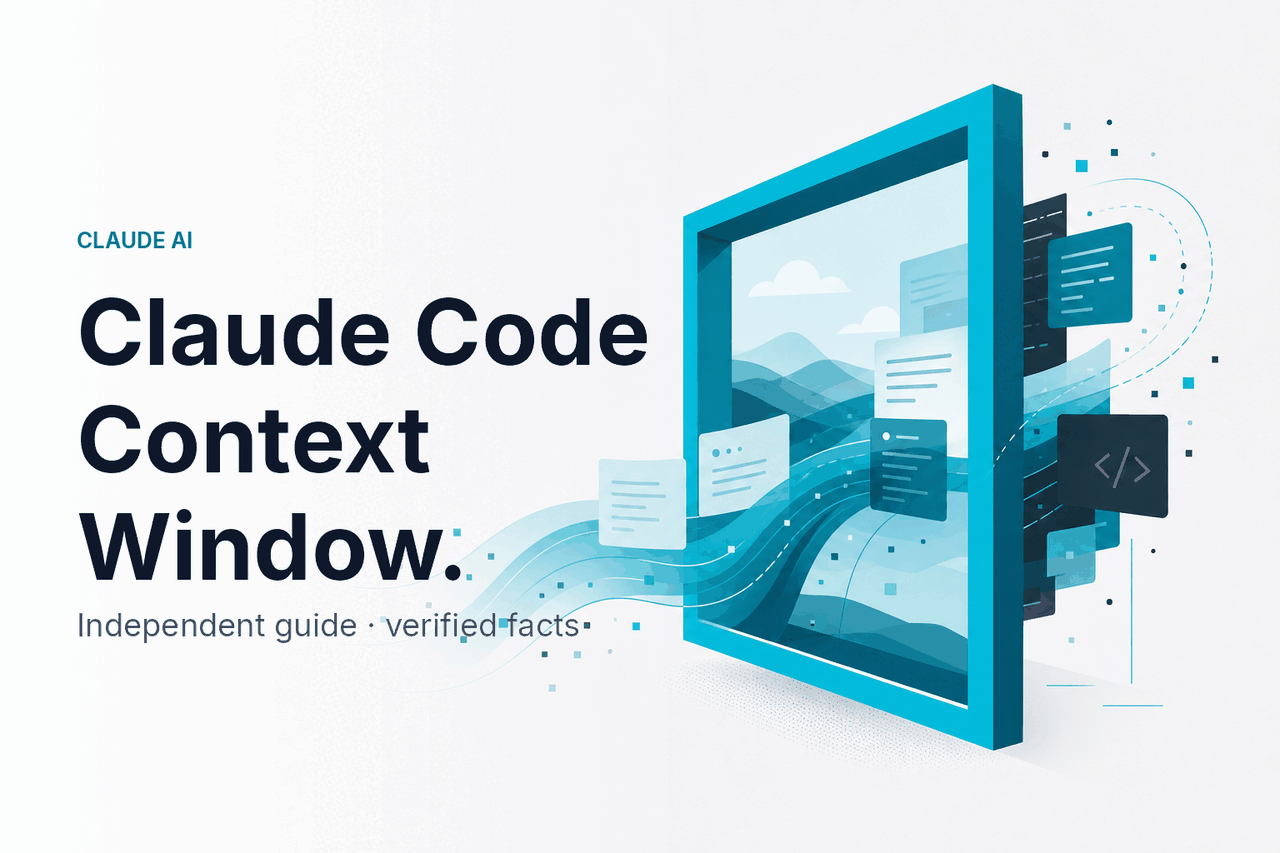
The Claude Code context window is the token budget Claude Code can use for your prompt, code, chat history, tool output, project instructions, and summaries when it sends work to a Claude model.
Use this page to understand why Claude Code sometimes “knows” your repository, why it may miss a file, and how to keep large coding tasks inside the model’s usable working memory. For broader product context, see our independent Claude features guide.
- The short answer
- How it works
- What you would do with it
- Claude Code compared with alternatives
- FAQ
- The practical verdict
- Sources
The short answer
The Claude Code context window is not a visible pane in your editor. It is the model’s working budget for tokens. Those tokens can include your prompt, relevant file contents, previous turns, command output, error logs, project instructions, and any summaries Claude Code keeps from earlier work.
The useful question is not only “how big is the context window?” It is “what information is actually inside it when Claude answers?” A large context helps. It does not replace clear scope, relevant files, and compact test output.
- What it does: holds the task, code snippets, repo context, tool results, and conversation state Claude uses for coding.
- Where it runs: in Claude Code, Anthropic’s command-line coding assistant for local projects.
- What affects it: model limits, plan access, file selection, command output, conversation length, and project instructions.
- Who it is for: developers who want Claude to inspect, edit, test, and reason across real codebases.
Current Claude models support large context windows when the selected model and product path allow it. Claude Opus 4.7 supports 1M context. Claude Sonnet 4.6 also supports 1M context and up to 128K max output. That does not mean every Claude Code session should load a whole repository. You should still guide what Claude reads.
For plan and token costs, use Anthropic’s official Claude pricing page and API pricing docs. For a plain-English version, see our Claude pricing guide.
Claude plans
Free: $0
Pro: $20/month or $17/month annual
Max: from $100/month
Team and Enterprise
Team Standard: $25/seat or $20/seat annual
Team Premium: $125/seat or $100/seat annual
Enterprise: $20/seat base plus API rates
API model rates
Opus 4.7: $5/M input, $25/M output, 1M context
Sonnet 4.6: $3/M input, $15/M output, 1M context, 128K max output
Haiku 4.5: $1/M input, $5/M output
Prompt caching gives a 90% discount on cached input tokens. The Batch API gives a 50% discount in both directions. These discounts help with repeated prompts and background jobs, but they do not make poor context selection harmless.
How it works
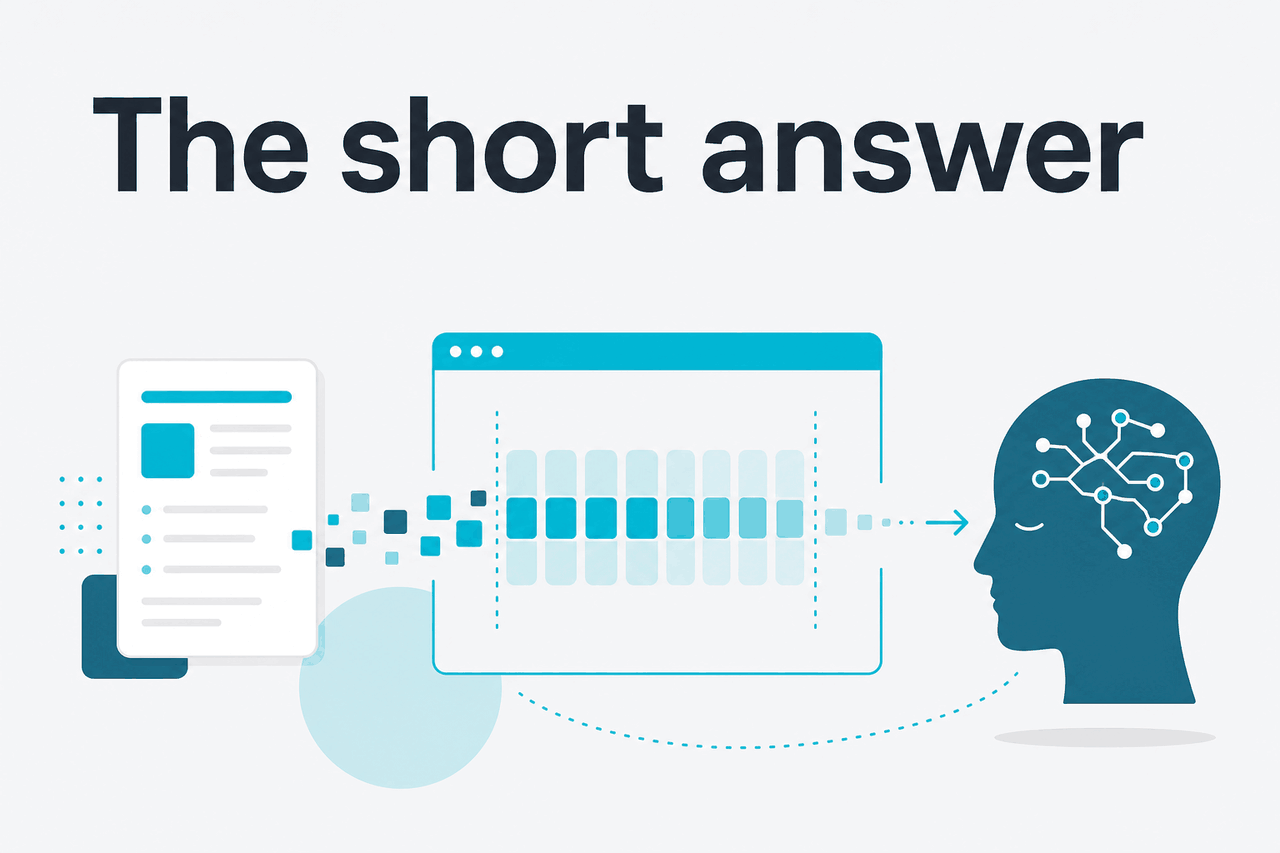
Claude Code runs in your terminal. You open it inside a project folder, ask for a task, and allow it to inspect files or run commands. Each turn builds a working packet of information for the selected Claude model.
That packet can include your prompt, file contents, directory structure, earlier messages, command results, and tool outputs from actions Claude Code performed. The context window sets the maximum size of that packet.
Tokens are not the same as words or characters. Code, JSON, stack traces, lockfiles, minified assets, and generated files can consume many tokens quickly. A 40-line failing test output is often more useful than a 5,000-line log.
When a session grows, Claude Code has to be selective. It may rely on recent messages, file reads, summaries, or instructions. You can help by narrowing the task, naming the files that matter, asking Claude to inspect before editing, and clearing irrelevant discussion when you change tasks. Anthropic’s Claude Code documentation is the primary source for product behavior.
Open Claude Code in the right folder
Start from the repository root or the smallest folder that contains the files for the task. This keeps discovery focused.
State the task and the boundary
Give Claude a concrete target: “Fix the failing auth middleware test without changing the public API.” Add constraints before it starts editing.
Ask it to inspect first
For non-trivial work, ask Claude to identify relevant files before making changes. This improves what enters the context window.
Run targeted tests
Let Claude run focused tests when appropriate, or paste the failing command and short error output. Avoid unrelated logs.
Reset or compact when the task changes
Use the slash commands available in your installed version, such as help and context-management commands shown by
/help. A new task often deserves a fresh context.
Project instructions also matter. Claude Code can use repository-level guidance such as conventions, test commands, architectural rules, and style preferences. Keep that guidance short. A useful instruction file says which test commands to run, what directories to avoid, and what patterns the codebase prefers.
If you use Claude through the API, the same principle applies at a lower level. You control the messages and files sent to the model. Our Claude API guide covers token-based usage, while Anthropic’s model overview lists supported model capabilities. Our Claude models guide compares the current model lineup in practical terms.
What you would do with it
The context window matters most when a task spans more than one file. Single-file edits rarely test the limit. Real Claude Code work usually involves tracing behavior, editing several files, running tests, and keeping enough state for Claude to avoid repeating itself.
Worked example
Fix a failing authentication test without loading the whole repository
This keeps the context focused on cause and effect rather than repository size.
A realistic first prompt for that task:
Inspect the failing auth middleware test before editing.
Find the files involved in session validation and route protection.
Do not change the public API.
After you identify the likely cause, propose the smallest fix and the targeted test command.
That prompt tells Claude what to read, what not to change, and what output you expect. It also avoids a common context mistake: asking for a broad repo-wide refactor when the problem is a narrow regression.
Another common use case is onboarding to an unfamiliar codebase. Ask Claude Code to map the architecture, but set a clear scope:
Give me a concise map of this repository.
Focus on request flow, data storage, background jobs, and test structure.
Ignore generated files and build outputs.
List the 10 files I should understand first, with one sentence for each.
This works because it turns the context window into a triage tool. Claude does not need every file in memory. It needs enough context to build a useful map and point you to the next files.
A third use case is a multi-file feature. Suppose you need to add a billing webhook handler. Ask Claude to inspect the route layer, existing event processing, database schema, and tests before it writes code:
We need to add a billing webhook handler.
First inspect existing webhook or event processing patterns.
Then identify the minimal files to change.
Before editing, show the plan and mention any migration or test impact.
For larger features, ask Claude to work in phases. Phase one: inspect and plan. Phase two: implement one slice. Phase three: run targeted tests. Phase four: clean up. This reduces context drift and makes each answer easier to review.
A fourth use case is debugging from logs. Do not paste a full production log unless you have to. Give the exact failing command, the relevant stack trace, the environment, and the files you suspect:
The command `npm test -- auth.middleware.test.ts` fails with the error below.
Use the stack trace to find the likely code path.
Do not inspect unrelated frontend files unless needed.

[paste the short failing output here]
That is usually enough for Claude Code to decide what to inspect next. If it needs more, let it ask or run a targeted command.
A fifth use case is refactoring. Context discipline matters here because refactors can sprawl. Ask for a dependency map before changes:
I want to rename the internal `AccountUser` type to `WorkspaceMember`.
Before editing, find all direct references and classify them:
1. type-only usage
2. runtime usage
3. public API exposure
Then recommend whether this is safe as one change.
Claude Code is strongest when you make it reason over the right surface area. The context window gives it room. Your prompt decides what fills the room.
Claude Code compared with alternatives
Claude Code is a terminal-first coding agent. Cursor, GitHub Copilot, and Sourcegraph Cody are usually editor-first. The right choice depends on how you work: terminal workflow, IDE workflow, codebase search, pull request review, or autocomplete.
| Tool | Where it works | Context approach | Strong fit | Main trade-off |
|---|---|---|---|---|
| Claude Code | Terminal and local project folder | Builds model context from prompts, file inspection, tool output, and session state | Multi-step coding tasks, debugging, repo-aware changes, command-driven workflows | Less natural if you want everything inside the editor UI |
| Cursor | Code editor | Uses editor state, indexed codebase context, selected files, and chat | Developers who want AI chat and edits directly in an IDE-like environment | Context quality depends on indexing, selection, and editor workflow |
| GitHub Copilot | Editors, GitHub, and related developer surfaces | Often centered on open files, repository signals, completions, and chat context | Autocomplete, inline suggestions, common coding patterns, quick editor help | Can feel less deliberate for long terminal-led debugging sessions |
| Sourcegraph Cody | Editor and code search workflows | Leans on codebase search and repository awareness | Large-codebase navigation and questions across indexed repositories | Setup and value depend on your code host, indexing, and team workflow |
| Claude web app | Browser at claude.ai | Uses uploaded or pasted context, chats, Projects, and product features | Explaining code, reviewing snippets, planning, documentation, non-terminal work | Not as direct for running commands and editing a local repository |
The main advantage of Claude Code is not just model context size. It is the combination of context, tools, and workflow. Claude Code can inspect files, propose edits, run commands, and iterate from your shell.
Pick Claude Code when
- You want an agentic terminal workflow.
- The task spans tests, scripts, and multiple files.
- You need Claude to inspect before editing.
- You prefer explicit prompts over passive autocomplete.
Skip it when
- You only need inline code completion.
- Your team standardizes on one editor assistant.
- You cannot allow a tool to run local commands.
- You need a fully visual code-review workflow.
If you are comparing product surfaces rather than coding tools, our Claude resources page can point you to related guides. Our Claude FAQ covers common account, plan, and feature questions.
FAQ
The practical verdict
The Claude Code context window is large enough for serious engineering work, but it is not unlimited storage for an entire codebase plus unlimited chat history. Treat it as a shared workspace. Put the relevant files, failing outputs, constraints, and project rules into that workspace. Keep unrelated logs, generated files, and broad side tasks out of it.
Decision rule
Use Claude Code when the task needs file inspection, command output, and multi-step reasoning from the terminal. Use an editor assistant when you mainly want inline completions or visual code review.
The best results come from short task boundaries, inspection before editing, targeted tests, and regular resets when the work changes.
Independent guide. Not affiliated with Anthropic. For the official Claude product, visit claude.ai.
Last updated: 2026-05-12
This article is part of the Claude Code hub on c-ai.chat.