Claude computer use lets Claude operate a controlled computer interface by viewing screenshots, choosing actions, typing, clicking, scrolling, and checking results; it is not automatic access to your personal computer. c-ai.chat is an independent guide, and our broader Claude features overview explains where this capability fits.

- What it does at a glance
- How it works
- When computer use helps
- What it cannot do
- FAQ
- The practical verdict
- Sources
What it does at a glance
Claude computer use is Anthropic’s pattern for letting Claude interact with software through a visual interface. Claude receives screenshots, decides the next action, and asks the host application to perform actions such as clicking, typing, scrolling, or pressing keys.
- Screen input: Claude sees screenshots supplied by the host environment.
- Action tools: Claude can request mouse, keyboard, scroll, and related actions.
- Step-by-step loop: Claude acts, sees the new state, then decides what to do next.
- Controlled access: Claude only gets the tools and environment a product or developer provides.
- Human checkpoints: Risky actions should require approval.
The key point is control. Claude does not gain open access to your laptop. A developer, product, or official Claude surface must connect Claude to a computer environment and expose specific tools. Anthropic describes this approach in its computer use documentation.
For ordinary users, this means Claude can help with screen-based workflows only when the product you use supports it. For developers, it means building a controlled environment where Claude can observe state, request actions, and receive updated screenshots after each action. If you are comparing this with text-only chat, see our guide to Claude models, because model choice affects speed, cost, and reliability.
How it works
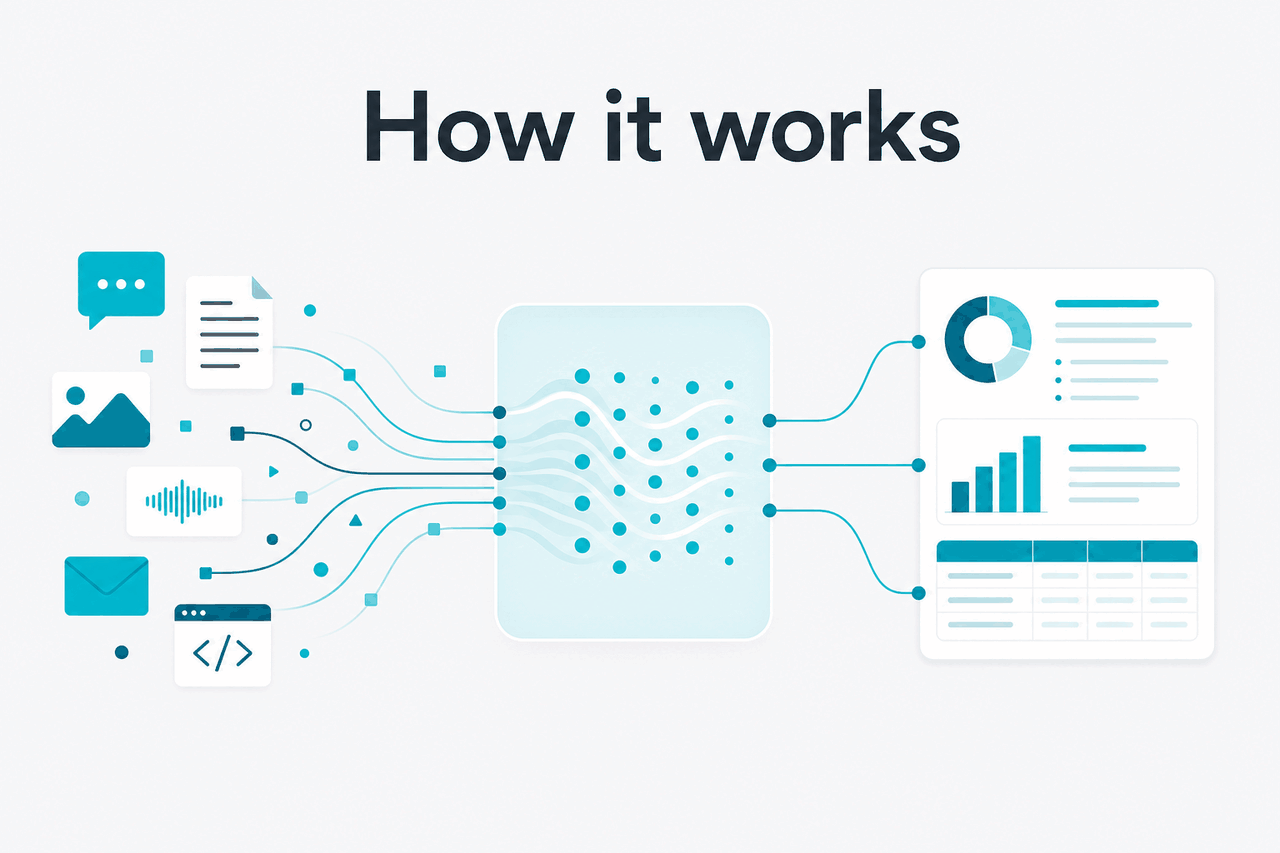
Computer use works as a feedback loop. The host application sends Claude a screenshot and a task. Claude reads the visible interface and returns a tool request, such as moving the cursor, clicking a button, typing text, pressing a key combination, or scrolling. The host performs that request, captures the new screen state, and sends it back. Claude repeats the loop until it finishes, gets stuck, or asks for help.
This is different from a browser automation script. A script usually targets known selectors, APIs, or page structures. Claude computer use is visual and language-guided. That makes it flexible on messy interfaces, but less deterministic. Claude may misread a label, click the wrong item, miss a disabled state, or fail when the page changes while it is working.
Worked example
Filling a form from a source document
This pattern lets Claude handle the visual interface while a human keeps control over irreversible steps.
A practical implementation usually has four parts: the model, the tool definitions, the execution environment, and the policy layer. The model decides what to do. The tools define what it may request. The environment performs the request. The policy layer blocks or escalates actions such as sending messages, making purchases, deleting records, changing permissions, or exposing secrets.
Developers should treat computer use as an agentic workflow, not a normal chat completion. You need logging, retries, guardrails, and human review for high-impact steps. If you are building with the API, start with our Claude API guide and Anthropic’s official model overview.
| Mode | How Claude receives context | How Claude acts | Best fit |
|---|---|---|---|
| Normal chat | User text, files, pasted content | Replies with text | Writing, analysis, coding help, planning |
| Tool use | User prompt plus structured tool results | Calls approved tools such as search or database functions | App workflows with known systems |
| Computer use | Screenshots from a computer environment | Requests visual actions such as click, type, scroll, and key press | Interfaces without clean APIs or predictable structure |
API cost depends on model choice, prompt size, output length, and how many screen-action loops a task needs. Prompt caching can reduce cached input cost by 90%. The Batch API can reduce costs by 50% in both directions when batch processing fits the workflow.
| Model | Typical role in computer use | API price per million tokens | Context and output notes |
|---|---|---|---|
| Opus 4.7 | Most capable option for complex visual reasoning and long multi-step tasks | $5 input / $25 output | 1M context |
| Sonnet 4.6 | Balanced option for many production workflows | $3 input / $15 output | 1M context; 128K max output |
| Haiku 4.5 | Lower-cost option for simpler, repetitive flows | $1 input / $5 output | Check official docs for current limits |
When computer use helps

Claude computer use helps when the task happens inside a user interface and there is no better API, export, or structured automation path.
The best use cases are bounded tasks with visible progress and a clear stop point. Claude needs enough room to reason, but not enough authority to cause serious damage if it makes a mistake.
- Moving information between systems. Claude can copy values from one visible source into another interface, especially when field names vary and a rigid script would break.
- Testing web applications. Claude can act like a user, click through flows, report confusing states, and show where an interface fails. It does not replace formal automated testing.
- Back-office draft work. Claude can prepare records, populate forms, or assemble tickets for a person to review before submission.
- Software setup and configuration. Claude can follow setup screens, select options, and document what changed. Keep human approval for security, billing, and access settings.
- Research across visual pages. Claude can inspect pages that do not expose clean text or structured data, then collect findings into a draft. This works best with narrow instructions and source checks.
Use computer use when
- The task depends on a visible interface rather than an API.
- A human can review important actions before they happen.
- The workflow has clear steps and a clear definition of done.
- Small delays are acceptable while Claude observes and acts.
Avoid it when
- A stable API or script can do the job reliably.
- The task involves payments, legal commitments, or irreversible deletion without approval.
- The interface contains sensitive data Claude does not need.
- The workflow must be fast, exact, and repeatable at high volume.
Decision rule
Use APIs first. Add computer use only when the visual interface is the practical path or when the task requires visual judgement.
Computer use can also support coding workflows. For example, Claude might inspect a local app in a browser, describe a UI bug, and suggest code changes. If your main interest is software development, start with our Claude resources and API documentation guide.
What it cannot do
Claude computer use is useful, but it is not reliable enough to treat as an unsupervised operator for high-stakes work. It sees screenshots, not the full hidden state of an application. It can misread the screen, lose track of progress, repeat an action, or assume a button does something different from what it actually does.
- It cannot safely bypass human judgement. Submitting forms, approving payments, changing permissions, sending external messages, or deleting data should require confirmation.
- It cannot guarantee perfect visual understanding. Small text, dense tables, unusual layouts, pop-ups, and accessibility issues can cause mistakes.
- It cannot access your computer unless access is provided. Claude needs a host environment that supplies screenshots and executes allowed actions.
- It cannot replace secure integration design. Secrets, tokens, customer records, and internal tools still need least-privilege access controls.
- It cannot make fragile sites stable. Slow pages, dynamic content, captchas, session timeouts, and modal dialogs can interrupt the loop.
- It cannot promise lower cost than direct automation. A visual agent may use more model calls than a simple API workflow.
Anthropic publishes trust and security materials at trust.anthropic.com, and service availability is tracked at status.claude.com. Those resources do not replace your own controls.
FAQ
These are the related questions people usually mean when they search for Claude computer use.
Individual plans
Free is $0. Pro is $20/month or $17/month with annual billing. Max starts at $100/month.
Team plans
Team Standard is $25/seat or $20/seat with annual billing. Team Premium is $125/seat or $100/seat with annual billing.
Enterprise
Enterprise is $20/seat base plus API rates. Confirm feature access with Anthropic before buying for a computer use workflow.
The practical verdict
Claude computer use is assisted screen operation. It lets Claude work through interfaces built for humans, which can help when no clean API exists. It is not a reason to remove oversight. The safest pattern is to let Claude prepare, navigate, and draft, then require human approval before anything sensitive or irreversible happens.
Use it when visual flexibility matters more than perfect repeatability. Avoid it when a direct integration can do the job faster and more safely. For professional teams, the strongest design is usually hybrid: APIs where possible, computer use where necessary, and explicit checkpoints for risk.
Independent guide. Not affiliated with Anthropic. For the official Claude product, visit claude.ai.
Last updated: 2026-05-12