Claude for designers means using Claude AI to turn messy briefs, UX notes, research, feedback, and content ideas into clearer design inputs faster; this independent guide from c-ai.chat shows where Claude helps, where it does not, and how to fit it into a practical design workflow.

If you want the broader Claude overview first, start with our independent Claude guide. If you already know the basics, use the table of contents below to jump to the workflow, mistakes, related questions, and the plain-English verdict.
- What you’ll learn
- Step by step
- Common mistakes to avoid
- Where to go next
- Other questions readers ask
- The honest take
- Free tier · no card
- Claude works well for briefs, UX copy, research synthesis, and critique prompts
What you’ll learn
By the end, you should be able to use Claude as a practical design assistant rather than a vague idea generator.
- Turn a rough project brief into a clearer problem statement, user goals, and constraints.
- Use Claude to organise interviews, notes, screenshots, and stakeholder feedback into themes you can act on.
- Generate UX writing, empty states, onboarding copy, and error-message options that match a product tone.
- Ask for design critique in a structured format so the output is more useful than generic praise.
- Choose when Claude is enough in chat and when you may want the Claude API or Claude Code for a larger workflow.
Pick when
- You need fast synthesis from lots of text
- You want alternative UX copy directions
- You need a thinking partner for flows and edge cases
Skip when
- You need final visual design produced inside Figma
- Your prompt has no context, audience, or constraints
- You want Claude to replace user research or usability testing
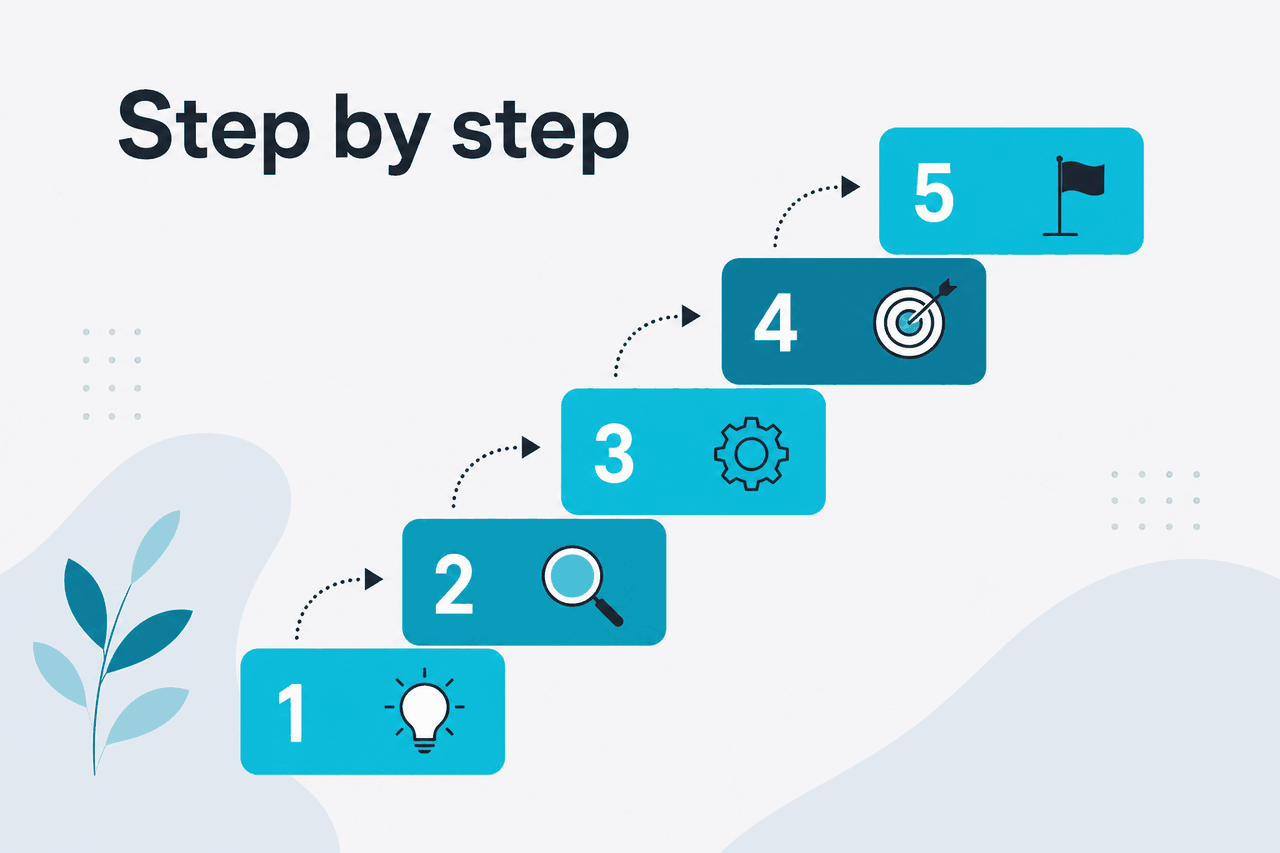
Step by step
Here is a hands-on workflow that fits product designers, UX writers, brand designers, and design leads. The goal is not to ask Claude for “a design.” The goal is to use it to sharpen thinking before, during, and after the design work.
-
Start with the real design problem
Paste your brief, ticket, meeting notes, or client request. Ask Claude to separate goals, assumptions, constraints, risks, and missing information. Designers get better output when the prompt starts from a real project document instead of a one-line request.
-
Have Claude rewrite the brief in plain language
Ask for a shorter version you could hand to a teammate. This quickly reveals ambiguity. If the summary feels off, your brief is probably off too. Ask for a one-sentence problem statement, target user, success metric, and out-of-scope list.
-
Extract user jobs, scenarios, and edge cases
Once the brief is clean, ask Claude to list common user journeys, failure states, and decision points. This is useful for onboarding, dashboards, settings, and forms. It also helps you catch accessibility and empty-state needs earlier.
-
Turn research notes into themes
Paste interview notes, survey responses, support tickets, or stakeholder comments. Ask Claude to cluster them into themes, rank them by frequency or severity, and separate evidence from opinion. This is one of the strongest use cases for designers.
-
Generate UX copy options with constraints
Give Claude your product tone, reading level, character limits, and banned words. Then ask for button labels, headings, helper text, tooltips, error states, and onboarding copy. Claude is much better when you say where the copy appears and what the user is trying to do.
-
Use structured critique prompts
Ask Claude to critique a flow, wireframe description, or content hierarchy against specific standards such as clarity, trust, accessibility, consistency, and conversion friction. Tell it to identify trade-offs, not just issues. Generic “review this design” prompts usually produce weak feedback.
-
Create handoff material for product and engineering
Claude can turn your design notes into annotated handoff text, acceptance criteria, content specs, and QA checklists. If you work closely with developers, this pairs well with our guides on Claude features and Claude Code.
-
Reuse strong prompts as templates
When you find a prompt that works, save it as a repeatable template for future projects: brief parser, UX copy generator, critique rubric, research synthesiser, or stakeholder summary. This makes Claude more consistent across your design team.
Below are realistic prompt patterns you can adapt. They are not magic words. They work because they give Claude context, role, constraints, and a clear output format.
Worked example
Prompt for cleaning up a design brief
Prompt: “Read the brief below and rewrite it for a product designer. Return: 1) one-sentence problem statement, 2) primary user and job to be done, 3) business goal, 4) constraints, 5) risks, 6) open questions, 7) what should be out of scope for v1.”
Worked example
Prompt for UX writing options
Prompt: “Write 5 error-state headline and body-copy pairs for a failed signup caused by an expired invite link. Keep the tone calm and direct. Avoid blame. Headline max 70 characters. Body max 140 characters. After the options, explain when each version is the best fit.”
Worked example
Prompt for design critique
Prompt: “Act as a UX reviewer. Critique the checkout flow below against four criteria: clarity, trust, friction, accessibility. For each issue, give severity, who it affects, why it matters, and one practical fix. Do not praise unless it serves a trade-off analysis.”
If your team wants to build repeatable design workflows around these prompts, the official API pricing is useful to know. Anthropic’s current API rates start at $1 per million input tokens for Claude Haiku 4.5, $3 for Claude Sonnet 4.6, and $5 for Claude Opus 4.7, with output at $5, $15, and $25 respectively. For many individual designers, though, the chat product at claude.ai is enough.
| Design task | Claude helps most with | Claude helps least with |
|---|---|---|
| Discovery | Summarising interviews, clustering pain points, framing hypotheses | Replacing direct research with users |
| UX writing | Generating options, tightening copy, matching tone constraints | Knowing product specifics you did not provide |
| Interaction design | Listing flows, states, edge cases, and handoff notes | Producing final visual layouts inside your design tool |
| Design critique | Structured reviews against explicit criteria | Judging aesthetics from missing or vague context |
| Collaboration | Turning notes into summaries, specs, and PM-facing updates | Replacing alignment with stakeholders |
For people learning the product itself, our Claude tutorials section covers beginner workflows, while our feature guides explain projects, research, and other capabilities in more detail.
Common mistakes to avoid
Most weak results come from weak setup, not from the model alone.
- Asking for “a design” with no context. Fix: give the product type, user goal, device, constraints, and what stage you are in.
- Treating Claude like a source of truth about your users. Fix: use it to organise evidence you already have, then validate with real research.
- Requesting UX copy without tone or length rules. Fix: define brand voice, reading level, banned phrases, and character limits.
- Using generic critique prompts. Fix: specify criteria like accessibility, trust, hierarchy, friction, consistency, or cognitive load.
- Pasting messy notes and accepting the first output. Fix: ask Claude to separate facts, assumptions, contradictions, and unanswered questions.
- Ignoring privacy and approvals. Fix: avoid sharing sensitive material unless your organisation permits it and you understand the relevant Claude plan and trust controls.
Where to go next
Once you can use Claude for briefs, critique, and UX copy, these are the next useful guides.
- Claude tutorials for practical walkthroughs you can copy into your own workflow.
- Claude features to understand projects, research, and the product capabilities designers most often use.
- Claude API if you want to automate research synthesis, content workflows, or design-system support tasks.
Do next
- Build a reusable critique prompt
- Create a UX copy template with tone rules
- Test Claude on one live project brief
Do not do next
- Roll it out team-wide without guardrails
- Assume a good prompt once will work forever
- Let AI summaries replace source notes

Other questions readers ask
These are nearby questions people usually have when searching for Claude for designers.
The honest take
Claude for designers is useful when the work is text-heavy, ambiguous, or overloaded with inputs. It is very good at turning briefs into clearer design problems, clustering research, drafting UX copy, surfacing edge cases, and giving structured critique. It is not a substitute for user research, visual craft, or actual design tooling.
If you treat Claude like a smart design operations assistant, it can save real time. If you expect it to produce final design thinking from a thin prompt, it will disappoint you. Start with one live project, give it better context than you think is necessary, and judge it on whether it improves decisions rather than whether it sounds impressive.
Independent guide. Not affiliated with Anthropic. For the official Claude product, visit claude.ai.
Last updated: 2026-05-12