To use Claude 3, sign in at claude.ai, start a new chat, give a clear prompt, attach files if needed, and refine the result with follow-up instructions; this guide from c-ai.chat explains the basic workflow, common mistakes, and what to try next.

- What you’ll learn
- Step by step
- Common mistakes to avoid
- Where to go next
- Other questions readers ask
- The honest take
- Free tier · no card
- API priced per million tokens
One quick note: c-ai.chat is an independent guide, not Anthropic. If you want the official product, use claude.ai. If you want a broader orientation first, see our Claude tutorials hub, our overview of Claude features, the Claude API guide, or our walkthrough of Claude Code.
What you’ll learn
By the end, you should be able to open Claude, ask for useful output, work with files, and improve responses without guessing.
- Choose the simplest way to use Claude: web, mobile, desktop, or API.
- Write prompts that get better first-pass answers.
- Upload documents or paste text for analysis, drafting, or summarising.
- Use follow-up turns to revise, expand, or change format.
- Know when to use the chat app versus the Claude API or Claude Code.
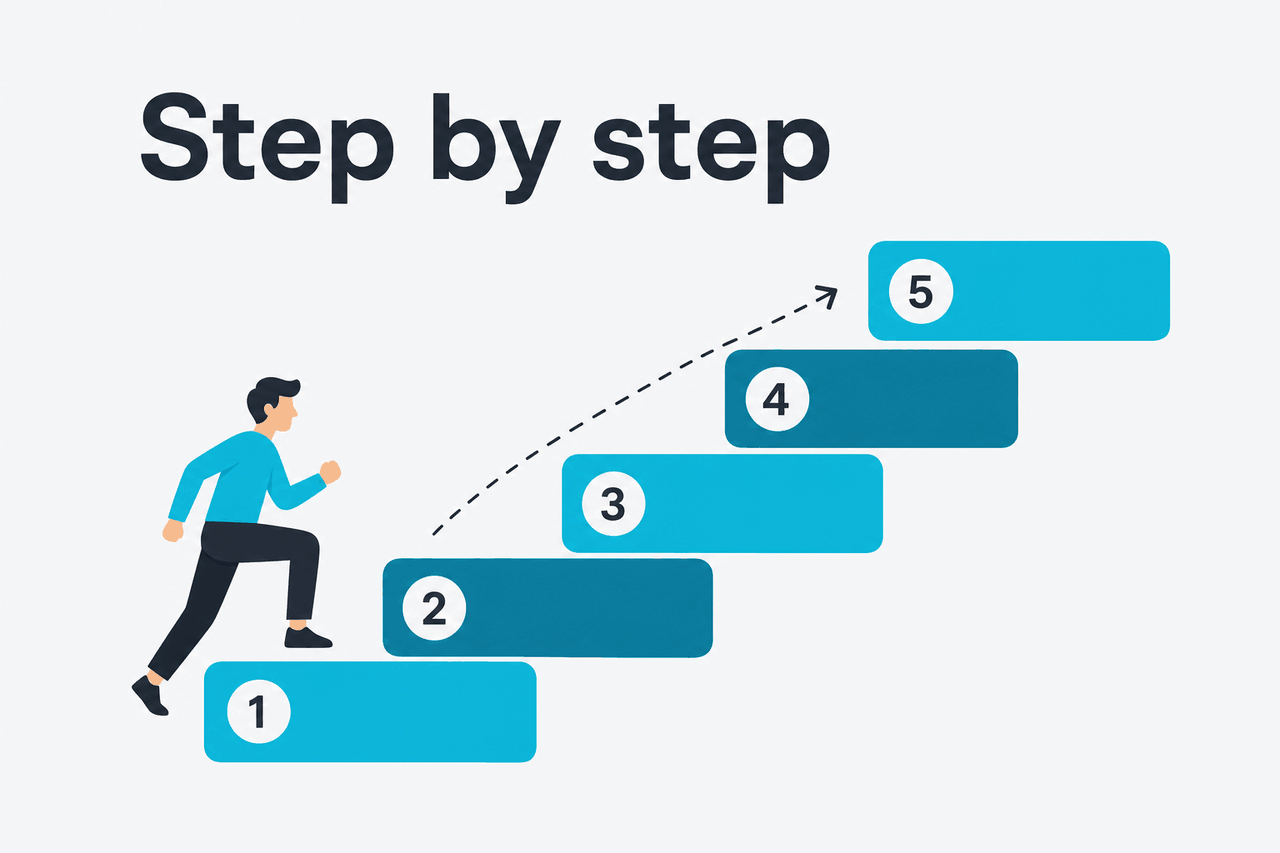
Step by step
Here is the hands-on workflow most people need. It covers the official Claude app first, then explains when to move into more advanced tools.
-
Create or open your Claude account
Go to claude.ai on the web, or install the official app on iOS, Android, or desktop from Anthropic’s product pages. The Free plan costs $0/month and gives you access with daily usage limits, so you can start without entering a card.
-
Start with a specific task, not a vague topic
Claude responds better when you ask for a concrete output. Instead of “tell me about email marketing,” ask for a deliverable: a draft, summary, checklist, comparison, or explanation for a target audience and format.
-
Write your first prompt with role, goal, context, and format
A simple structure works well: tell Claude what it should do, what background matters, and how you want the answer returned. You do not need prompt engineering jargon to get useful results.
-
Attach files when the source material matters
If you want Claude to summarise a report, review notes, rewrite a draft, or extract action items, upload the file instead of describing it from memory. This reduces missing context and usually improves accuracy.
-
Use follow-up turns to tighten the result
The first answer is often a draft. Ask Claude to shorten it, add examples, change tone, turn it into bullets, or explain the reasoning step by step. Good use of Claude is iterative.
-
Save work in projects when a topic is ongoing
If you return to the same work repeatedly, use Claude Projects where available on your plan. Pro includes unlimited Projects, which is useful for recurring writing, research, study, and team handoff workflows.
-
Choose the right model for the job
For most people, Claude Sonnet 4.6 is the default pick because it balances quality and speed well. Use Claude Opus 4.7 when the task is more demanding, and Claude Haiku 4.5 when speed and low cost matter most in the API.
-
Move to the API only when you need automation
If you want Claude inside your own app, workflow, or backend, switch to the API route. Anthropic prices API usage per million tokens rather than by monthly seat alone, so the best setup depends on your volume and product needs.
Here is a simple first prompt you can paste into Claude and adapt.
Act as a clear, practical writing assistant.
Task: Rewrite the text below into a concise client update.
Audience: Busy stakeholder with no technical background.
Tone: Professional and direct.
Format: 5 bullet points, then 1 short next-step recommendation.

Text:
[Paste your notes or draft here]
Worked example
Turning messy notes into a clean update
This is the core pattern: give Claude source material, a target audience, and a fixed output format.
If you are using Claude for learning, analysis, or research, ask it to show structure instead of only giving an answer. For example:
Explain this topic at two levels:
1. A plain-English explanation for a beginner
2. A more technical explanation for someone with domain knowledge

Then list:
- 3 common misunderstandings
- 3 practical examples
- 3 follow-up questions I should ask next
If you are using Claude for coding, the same principle applies. Give the language, runtime, constraints, and the exact output you want. If your work is terminal- or repo-based, our Claude Code guide is the better next step.
Write a Python function that:
- accepts a CSV file path
- removes duplicate rows by email
- outputs a cleaned CSV
- logs how many rows were removed

Requirements:
- Python 3.11
- standard library only
- include docstrings
- show a short usage example
For heavy workflows, it also helps to know the current plan and pricing structure. The app plans are for end users; API pricing is separate.
Free
$0/month
For first-time and casual users
- Web, iOS, Android, and desktop access
- Daily usage limits
Pro
$20/month
For individuals who use Claude often
- Claude Code and Claude Cowork
- Unlimited Projects, Research access, additional models, and Office integrations
Max
From $100/month
For power users who need more capacity
- 5x or 20x Pro usage
- Higher output limits, early feature access, and priority traffic
If you are comparing app use with developer use, this table is the quickest way to frame it.
| Option | Best for | How pricing works | Notes |
|---|---|---|---|
| Claude app | Chat, writing, analysis, everyday work | Free, Pro at $20/month, Max from $100/month | Fastest way to get started |
| Team | Shared workspaces and admin controls | Standard $25/seat/month or Premium $125/seat/month | Includes SSO and management features |
| Enterprise | Larger organisations with compliance needs | $20/seat base + usage at API rates | SCIM, audit logs, role-based access, spend controls, regional data residency |
| API | Apps, automations, and custom workflows | Per million tokens | Best when you need programmatic control |
Current API model pricing is straightforward: Claude Opus 4.7 costs $5/M input and $25/M output, Claude Sonnet 4.6 costs $3/M input and $15/M output, and Claude Haiku 4.5 costs $1/M input and $5/M output. If you are building with longer prompts or repeated context, prompt caching and batch processing matter.
90% off
cached input tokens with prompt caching
Anthropic also offers the Batch API at 50% off both input and output directions. For many people, though, none of this matters on day one. If your goal is simply to learn how to use Claude 3-style chat workflows, start in the app and only move to the API when the task repeats enough to justify automation.
Pick the app when
- You want to ask questions, draft text, or analyse files quickly
- You do not need code-level integration yet
- You prefer a conversational workflow
Skip straight to API when
- You need Claude inside your own product
- You want automated pipelines or backend jobs
- You need direct control over token usage and model selection
Common mistakes to avoid
Most bad results come from preventable input problems, not from Claude being unusable.
- Being too vague. “Help with marketing” is weak. Fix it by asking for a specific output, audience, tone, and format.
- Forgetting source material. If Claude needs to analyse a document, attach or paste it. Do not expect strong results from a memory-based summary of the document.
- Expecting perfection in one turn. Treat the first answer as a draft. Ask for revision, compression, examples, or a different structure.
- Mixing multiple jobs into one prompt. If you ask for research, strategy, copywriting, and formatting all at once, quality drops. Break the task into stages.
- Using the wrong tool. Chat is ideal for interactive work. If the job needs automation or integration, switch to the API guide instead.
- Ignoring plan limits. Free usage is enough for testing, but frequent users usually need Pro at $20/month or Max from $100/month for more capacity.
Where to go next
Once you can use Claude for simple chats and drafts, the next gains come from learning the right workflow for your use case.
- Browse the tutorial library if you want more task-specific walkthroughs.
- See Claude features if you want to understand projects, research, integrations, and app capabilities.
- Learn the Claude API if you want to build automations, products, or internal tools.
If your work is mostly code generation, repo changes, or terminal workflows, go straight to Claude Code. That path is more efficient than trying to force everything through the standard chat interface.

Other questions readers ask
These are closely related questions people often mean when they search for how to use Claude 3.
The honest take
If your question is simply how to use Claude 3, the practical answer is: use the official Claude app first, give it a clear task, include the source material, and improve the output through follow-up turns. That covers the majority of real-world use cases, even though Anthropic’s current model lineup has moved beyond the older “Claude 3” naming people still search for.
Claude is easy to start with, but good results still depend on clear instructions and realistic expectations. If you only need chat-based help, the app is enough. If you need repeatable workflows, team controls, or software integration, move next to features, Claude Code, or the API.
Independent guide. Not affiliated with Anthropic. For the official Claude product, visit claude.ai.
Last updated: 2026-05-12