The claude code -p flag runs Claude Code in print or headless mode, so you can send a prompt from the terminal and get plain output back without opening the interactive interface; this guide explains how it works, when to use it, and where it fits alongside the wider Claude Code guide from c-ai.chat, an independent reference site not affiliated with Anthropic.
- The short answer
- How it works
- What you’d actually do with it
- Vs. the alternatives
- Other questions readers ask
- The honest take
The short answer
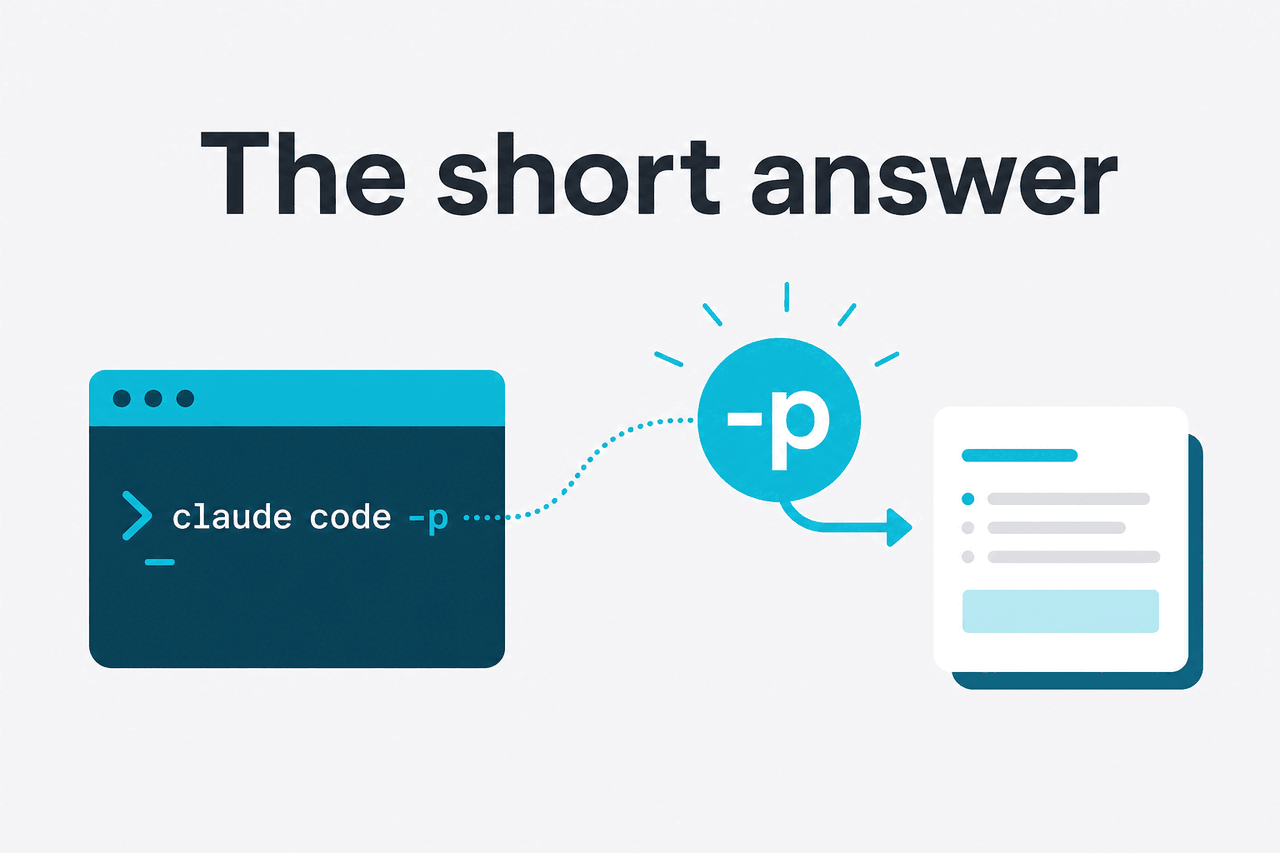
The -p flag in Claude Code is for non-interactive terminal use: you pass a prompt, Claude Code runs it once, prints the result, and exits. It is most useful for shell workflows, scripts, automation, CI checks, and fast one-off codebase questions where a chat-style session would be slower than necessary.
- What it does: runs Claude Code once and prints the response
- Where it runs: terminal, scripts, and headless workflows
- What it costs: uses your Claude plan or API-backed usage depending on setup
- Who it’s for: developers who want automation, piping, or CI-friendly output
If you already use Claude in the browser at claude.ai, think of -p as the opposite interaction model. Instead of an ongoing conversation, you issue a single instruction from the command line and receive a direct result that can be read by a human, redirected to a file, or piped into another tool. That makes it a better fit for repeatable tasks than ad hoc chat.
For developers comparing this to the broader Claude stack, it helps to separate three layers: Claude’s consumer app plans on the pricing guide, Claude Code as a coding interface, and the Claude API for custom programmatic integrations. The -p flag sits in the middle: it feels scriptable, but it is still part of a developer tool workflow rather than a raw API endpoint.
How it works

At a high level, claude code -p changes Claude Code from a live terminal assistant into a single-shot command. You provide a prompt directly on the command line, or feed text into it through standard input, and the tool returns a printed result. Because the session is not meant to stay open, the output is easier to redirect into logs, files, shell variables, and other automation steps.
That matters because interactive coding assistants are great for exploratory work, but less convenient when you want determinism and speed. A headless mode fits jobs like “summarise the changed files,” “explain this stack trace,” “generate a commit message,” or “review the diff for obvious problems.” In those cases, you often want a clean response that another command can consume, not a conversational UI.
Under the hood, Claude Code still relies on Claude models from Anthropic’s platform. Which model is available, how much usage you get, and whether a task makes sense at all depend on your setup and plan. Anthropic’s current public model lineup includes Opus 4.7 at $5/M input tokens and $25/M output tokens, Sonnet 4.6 at $3/M input and $15/M output, and Haiku 4.5 at $1/M input and $5/M output, with long context support documented for the higher-capacity models on the official platform pages.
-
Run a one-shot prompt
Use
claude code -p "Explain the failing test in tests/auth.spec.ts"when you want a single answer instead of an interactive session. -
Point it at real project context
Run the command from the repository root, or pipe in relevant data such as
git diff, build output, or a stack trace. -
Capture the printed output
Send the result to standard output, a file, or another shell command. For example, you might save it with
> review.txtor pass it into a release script. -
Repeat in scripts or CI
Once the prompt is stable, move it into a shell script, pre-commit helper, or build job so the same check runs consistently.
The practical benefit is not that -p does something magical that the interactive mode cannot do. It is that it removes interface friction. You can wire Claude Code into the same places you already use shell commands: Git hooks, local scripts, editor tasks, and CI workflows. If you are already exploring Claude’s broader features, this is one of the clearest examples of Claude being useful as infrastructure rather than just a chat window.
What you’d actually do with it
The easiest way to judge the claude code -p flag is to look at concrete use cases. Most people do not need headless mode for open-ended pair programming. They need it for short, repeatable terminal tasks where a single prompt and a clean output are enough.
1) Turn a diff into a commit message.
This is one of the most common uses. Instead of writing the summary yourself, you ask Claude Code to read the staged changes and return a conventional commit line or a short body.
git diff --staged | claude code -p "Write a concise conventional commit message for these staged changes. Return only the commit message."This works well because the input is bounded and the desired output is strict. If you want even more consistency, specify your team’s commit style in the prompt.
2) Explain a failing build without starting a session.
When a test run or build crashes, you often want a fast diagnosis more than a long conversation. Feeding the error output into headless mode keeps the workflow tight.
npm test 2>&1 | claude code -p "Read this test output. Identify the likely root cause and list the first three fixes to try."This is especially helpful when the raw logs are noisy. Claude can compress the output into the parts that matter: failing module, probable cause, and next steps.
3) Review a pull request diff for risk.
A lightweight review prompt can flag broad issues before a human reviewer spends time on details. It will not replace code review, but it can surface obvious concerns quickly.
git diff origin/main...HEAD | claude code -p "Review this diff for security, performance, and maintainability risks. Return a short bullet list grouped by severity."Pick when
- You want a first-pass review before opening a PR
- You need output that can be copied into a ticket or comment
- Your prompt can define a clear format
Skip when
- You need a back-and-forth debugging session
- The task depends on hidden runtime context Claude cannot see
- You need hard guarantees rather than a probabilistic review
4) Summarise a codebase area before editing.
If you are entering an unfamiliar repository, a one-shot summary can save time. Instead of asking broad questions interactively, you can request a map of a specific folder or module.
find src/auth -type f | claude code -p "Based on these file paths, infer the likely architecture of this auth module and list the files I should inspect first."Used carefully, this is good for orientation. It is less reliable if you ask it to infer too much from too little context. Better prompts usually include actual file contents or a tree plus a few key source files.
5) Generate a release note draft from merged changes.
This is where print mode becomes useful outside pure coding tasks. Product and engineering teams often need short summaries for stakeholders, and headless mode can turn raw Git history into a first draft.
Worked example
Draft release notes from recent commits
git log --oneline --since="2 weeks ago"release-notes-draft.mdThe value is speed, not final polish. A human still needs to remove internal-only details and confirm wording.
Across these examples, the pattern is simple: -p is strongest when the input can be piped in, the expected output format is narrow, and the result needs to flow into another step. If you find yourself wanting to ask follow-up questions after every run, you probably want the normal Claude Code experience instead.
Vs. the alternatives
The closest alternatives are not identical products. Cursor, GitHub Copilot, Sourcegraph Cody, and similar tools often live inside the editor and focus on completions, inline edits, or integrated chat. Claude Code with the -p flag is more terminal-native. That makes it unusually handy for shell workflows, but less natural if your whole process revolves around the IDE.
| Tool or mode | Best for | Where it fits well | Main trade-off |
|---|---|---|---|
Claude Code -p |
One-shot terminal tasks | Shell scripts, CI, piping diffs and logs | Less convenient for long back-and-forth editing |
| Claude Code interactive mode | Ongoing coding assistance | Exploration, debugging, iterative edits | Harder to automate cleanly |
| Cursor | IDE-first AI editing | Inline changes, codebase chat, editor workflow | Less terminal-centric than headless commands |
| GitHub Copilot | Autocomplete and in-editor help | Fast suggestions while writing code | Not as naturally suited to shell-based single-shot tasks |
| Direct Claude API | Custom application logic | Full programmatic control, backend integrations | More setup than using an existing CLI workflow |
The honest trade-off is that Claude Code -p is not the universal answer. If you want editor-native completions, use an editor-native tool. If you want a production integration with strict control over prompts, retries, structured outputs, and billing, use the API directly through platform.claude.com. But if your workflow starts with a terminal command and ends with stdout, the -p flag is unusually practical.
Other questions readers ask
If you are pricing larger automated usage rather than personal terminal use, Anthropic’s official platform pricing also lists useful optimisation levers: prompt caching can reduce cached input cost by 90%, and the Batch API can reduce both input and output costs by 50%. Those options matter more when a simple shell helper grows into a repeated team workflow.
90% off
cached input tokens with prompt caching
The honest take
The claude code -p flag is worth using if you want Claude Code to behave like a Unix-style tool: one prompt, one output, then exit. It is not the most exciting feature on paper, but it is one of the most useful in practice for developers who live in the terminal. For commit messages, log analysis, diff summaries, release note drafts, and CI-adjacent tasks, it removes friction and makes Claude easier to automate.
It is less compelling if your work depends on long interactive conversations, live editor actions, or tightly controlled application logic. In those cases, the standard Claude Code interface, the official Claude app, or direct API usage may fit better. The right question is not whether headless mode is “better.” It is whether your task benefits from clean stdout and repeatable commands. If yes, -p is exactly the right tool.
Independent guide. Not affiliated with Anthropic. For the official Claude product, visit claude.ai.
Last updated: 2026-05-12