

Searching for a “Claude Cowork download”? Here is the key correction: there is no separate Cowork installer. Cowork is an agentic feature inside the Claude apps — you enable and use it on a paid plan, on the web or in the desktop app, rather than downloading a standalone program. This guide shows exactly how to access it. For what Cowork does first, see the Cowork overview and our Cowork hub.

- There is no separate “Cowork download”
- Access Cowork on the web
- Access Cowork in the desktop app
- Cowork on mobile (beta)
- What you need first: a paid plan
- Sources
There is no separate “Cowork download”
Let’s clear this up before anything else. Cowork is not a standalone application you install. It is a capability built into Claude, so you reach it by signing in to the Claude apps you already use — the website or the desktop app — on a plan that includes it. If a page anywhere implies you should download a “Cowork.exe” or a dedicated “Cowork app,” that is a misunderstanding. What you actually do is open Claude and use the Cowork feature inside it.
- No standalone Cowork installer — it lives inside Claude
- Surfaces: web and desktop; mobile in beta
- Requires a paid plan: Pro, Max, Team, or Enterprise
Access Cowork on the web
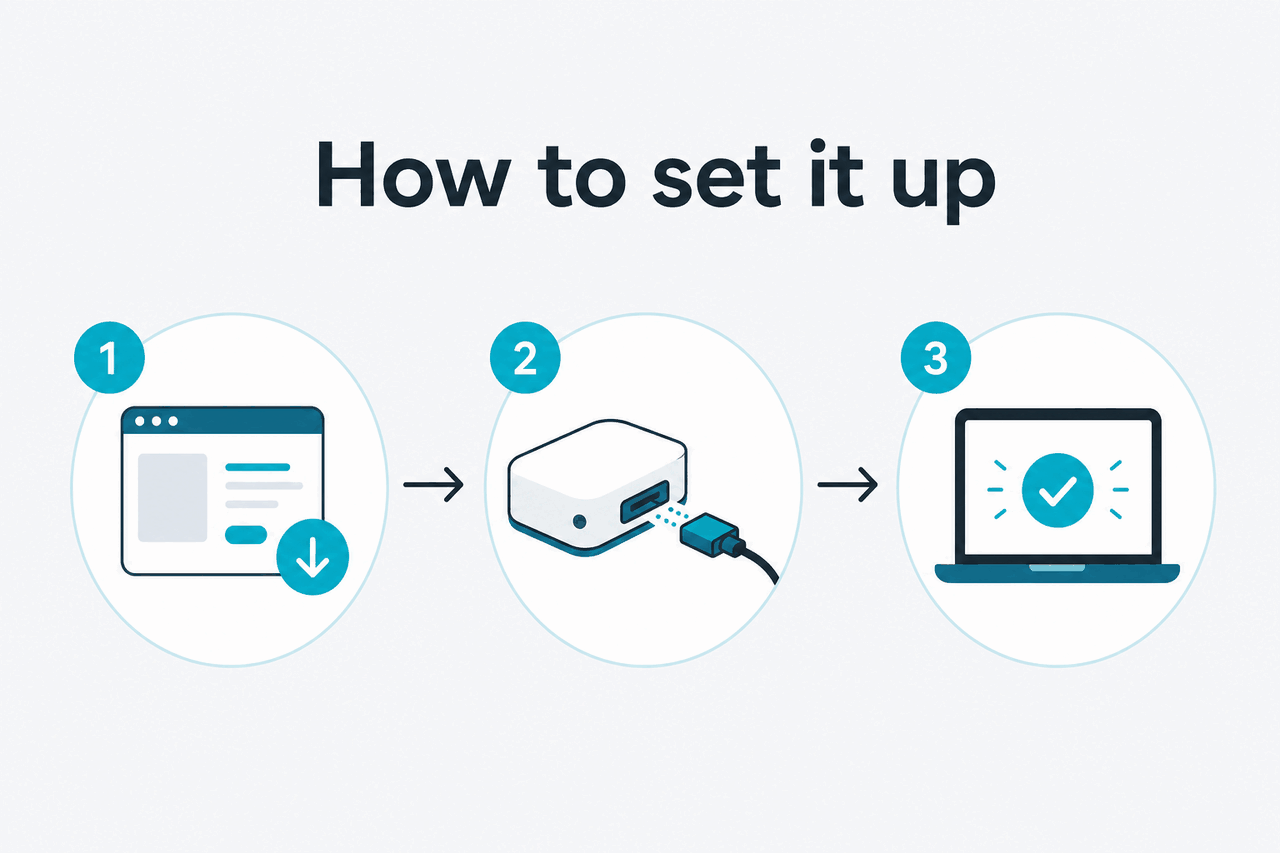
The fastest route needs no installation at all:
-
Sign in to the Claude web app
Go to claude.ai and log in to your account.
-
Make sure you’re on a paid plan
Cowork is included on Pro, Max, Team, and Enterprise. If you’re on the free tier, you’ll need to upgrade first.
-
Open Cowork and brief a task
Start Cowork from within the app, describe your multi-step task, and let the agent execute it.

Access Cowork in the desktop app
If you prefer a dedicated window on your computer, install the Claude desktop app — note that this installs Claude, not a separate “Cowork” program. Once it is set up and you are signed in on a paid plan, Cowork is the same feature you would use on the web. For platform-specific steps, see Cowork on a Mac and Cowork on Windows. Because the agent runs on Anthropic’s servers, you can start a task in the desktop app and resume it later on the web under the same account.
Cowork on mobile (beta)
A mobile experience for Cowork is in beta. That means it may be more limited or less stable than web and desktop while it matures, so treat it as an early preview rather than the primary way to run important tasks. The most reliable surfaces today are the web and desktop apps; mobile is a bonus for checking in on a task rather than the place to kick off complex work.
Mobile = beta
web and desktop are the stable surfaces
A question worth answering directly: do you have to install anything to try Cowork? No. The web app runs it with nothing to download, which makes the browser the fastest way to see whether Cowork fits your work. The desktop app is there if you prefer a dedicated window, but it is a preference, not a gate — and because the agent’s work runs on Anthropic’s servers, moving between web and desktop later changes nothing about your tasks or history.
What you need first: a paid plan
The one real prerequisite is a paid Claude plan. Cowork is part of Pro, Max, Team, and Enterprise; it is not on the free tier. Beyond that, you just need to be signed in to a Claude app. There is no add-on to buy on top of your plan and no separate Cowork licence — if your plan includes it, you have it. For current prices and what each tier includes, see our Claude pricing guide.
c-ai.chat is an independent guide to Claude and is not affiliated with Anthropic. Claude Cowork is an official Anthropic product; use it inside the Claude apps at claude.ai.
Facts verified: 2026-07-14