
Using Claude Cowork on Windows works just like it does anywhere else: there is no separate “Cowork for Windows” to install. Cowork is an agentic feature you use inside the Claude desktop app (or the web app) once you’re signed in on a paid plan. This guide covers the Windows specifics — setup, running long tasks, and what to expect. For the concept first, see the Cowork overview and our Cowork hub.

- What you actually install on Windows
- Getting set up on Windows
- Delegate a task, then step away
- Web vs desktop on Windows
- Requirements and limits
- Sources
What you actually install on Windows
On Windows, the thing you install is the Claude desktop app — not a separate Cowork installer. Cowork is a feature inside Claude, so once the app is set up and you’re signed in, it’s simply available. And the demanding part of the work never touches your PC: the agent loop and any code execution run remotely, on Anthropic-managed servers in an isolated environment, and your sessions and files are saved to your Claude account. Your Windows machine provides the interface; the execution happens in the cloud. Tasks that need local files, your browser, or computer use still require the Claude Desktop app and that device to stay available.
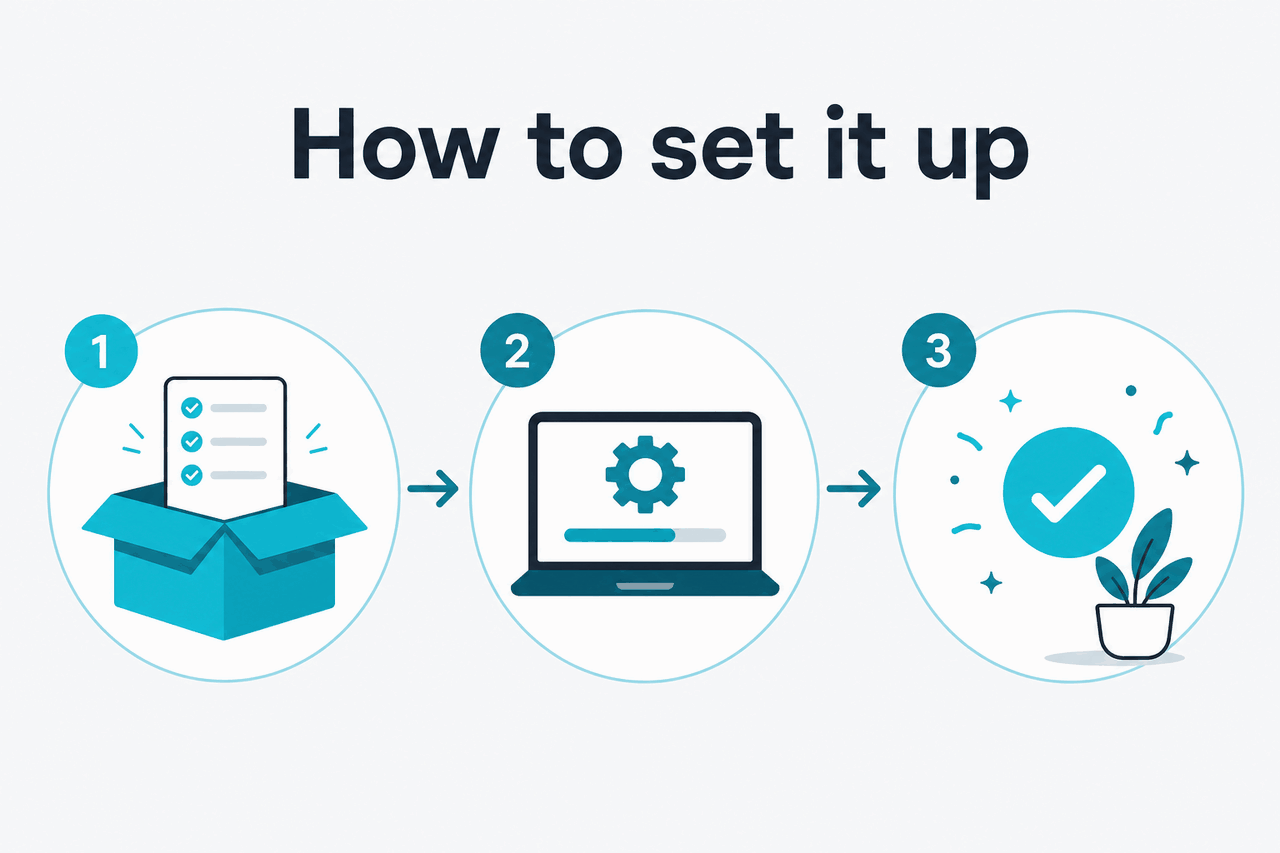
Getting set up on Windows
-
Get the Claude desktop app (or use the web)
Download the Claude desktop app for Windows from the official site, or just open claude.ai in your browser — both are fine.
-
Sign in on a paid plan
Cowork requires Pro, Max, Team, or Enterprise. Sign in with an account on one of those plans.
-
Open Cowork and write a brief
Start Cowork inside the app, describe your multi-step task clearly, and attach any source files it needs.
-
Let the agent run
Start the task and leave it to work — it executes server-side and hands back finished files.

Delegate a task, then step away
Because the work runs on Anthropic’s servers rather than your PC, you don’t have to keep the machine awake and watching. Start a task on your Windows laptop, close the lid or shut the app, and the job keeps going — “close your laptop, Claude keeps going,” as Anthropic puts it. Come back later, on the same PC or another device signed in to your account, and the finished output is ready. That same-account continuity works across your own devices; it is not a second person joining your session.
Runs remotely
your PC can sleep while the task finishes
Web vs desktop on Windows
Windows users get the same two choices as everyone else, and Cowork behaves identically in both. The web app requires no install and is the quickest way to start. The desktop app gives you a standalone window outside the browser, which can be nicer for focused work. Neither option changes Cowork’s capabilities, so choose by preference. For more on why the app and the feature are different things, see Cowork vs the Claude desktop app.
Because the computation runs remotely, Windows hardware is almost irrelevant. There’s no large model download, no GPU requirement, and no heavy local processing to drain a laptop battery. A modest office PC and a high-end workstation behave the same, since both are simply displaying results streamed back from Anthropic’s servers. If your machine can run the Claude desktop app or a current browser, it can run Cowork tasks — the horsepower lives in the cloud, not on your desk.
Requirements and limits
- A paid plan. Cowork is included with Pro, Max, Team, or Enterprise — not the free tier.
- An account, not a powerful rig. The work runs in the cloud, so your PC’s specs are largely irrelevant.
- Session-based usage. Claude usage is session-based (around five hours) plus weekly limits, not daily caps.
- Not a shared workspace. Cowork is your agent, not a team room for several people at once.
- Review the files. Open the output and check the parts that matter before relying on it.
c-ai.chat is an independent guide to Claude and is not affiliated with Anthropic. Claude Cowork is an official Anthropic product; use it inside the Claude apps at claude.ai.
Facts verified: 2026-07-14