

Using Claude Cowork on a Mac is refreshingly simple, because there is nothing called “Cowork for Mac” to hunt down. Cowork is an agentic feature you use inside the Claude desktop app (or the web app) once you are signed in on a paid plan. This guide covers macOS specifics — setup, running long tasks, and what to expect. For the concept first, see the Cowork overview and our Cowork hub.

- What you’re actually installing on a Mac
- Getting set up on macOS
- Running a task and closing the lid
- Web vs desktop on a Mac
- Requirements and limits
- Sources
What you’re actually installing on a Mac
The thing you install on macOS is the Claude desktop app — not a separate Cowork program. Cowork is a feature inside Claude, so once the app is installed and you are signed in, Cowork is simply there for you to use. This matters because the heavy lifting does not happen on your Mac at all: the agent loop and any code execution run remotely, on Anthropic-managed servers in an isolated environment, and your sessions and files are saved to your Claude account. Your Mac is the window; the work happens in the cloud.
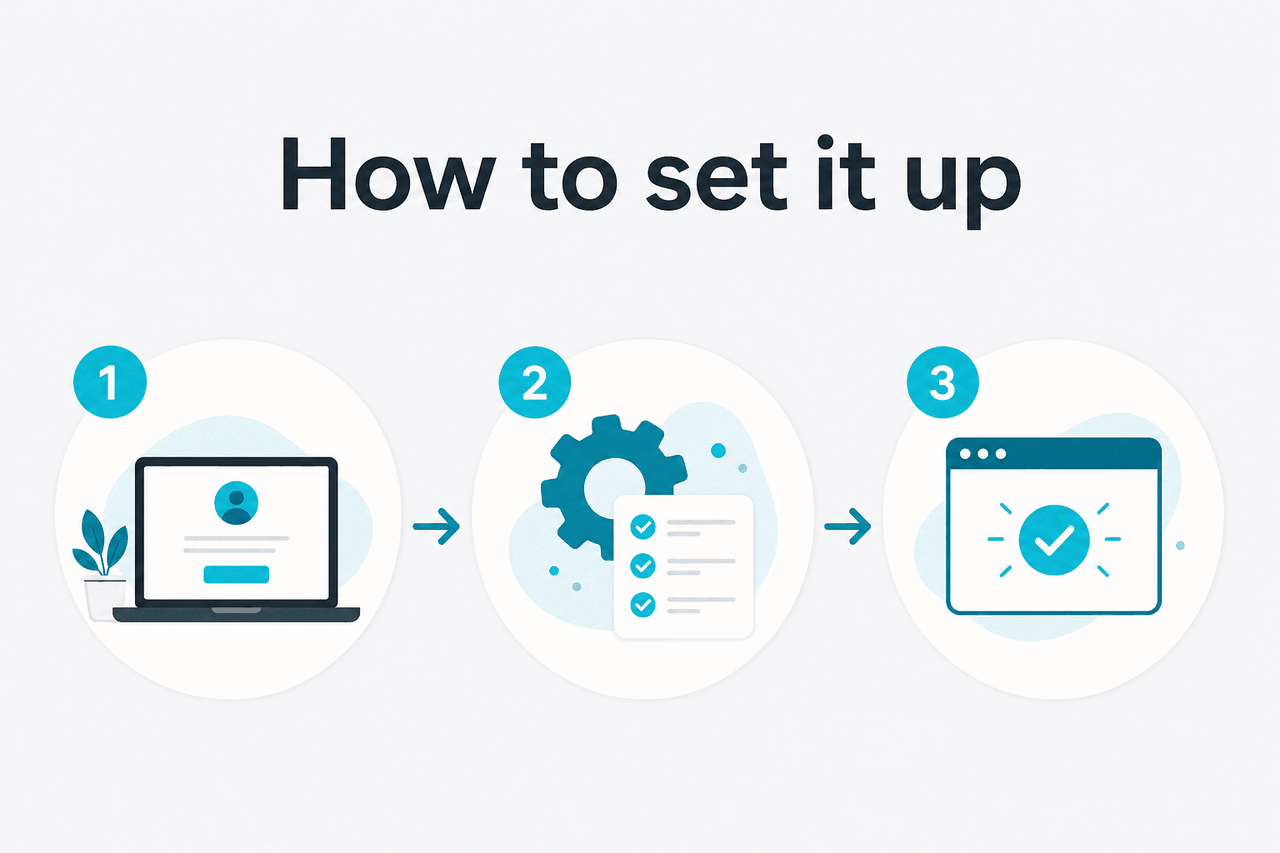
Getting set up on macOS
-
Get the Claude desktop app (or skip to web)
Download the Claude desktop app for macOS from the official site, or simply open claude.ai in your browser — both work.
-
Sign in on a paid plan
Cowork needs Pro, Max, Team, or Enterprise. Sign in with an account on one of those plans.
-
Open Cowork and describe a task
Start Cowork inside the app, write a clear brief for your multi-step task, and attach any source files.
-
Let it run
Kick the task off and step away — the agent executes it server-side and returns finished files. Tasks that need local files, your browser, or computer use still require the Claude Desktop app and that device to stay available.

Running a task and closing the lid
One of the nicest things about Cowork on a laptop is that you are not tethered to it. Because the task runs on Anthropic’s servers, you can start a job on your MacBook and close the lid — the work keeps going. Anthropic’s own line is “close your laptop, Claude keeps going.” When you come back, or open Claude on another device signed in to the same account, the finished output is waiting. That same-account continuity is handy on a Mac you carry between meetings.
Close the lid
tasks run server-side and keep going
Web vs desktop on a Mac
On a Mac you have two equally valid options, and Cowork is the same feature in both. The web app needs no installation and is the quickest way to try Cowork. The desktop app gives you a dedicated window separate from your browser tabs, which some people prefer for focus. Neither changes what Cowork can do; pick whichever fits your habits. See Cowork vs the Claude desktop app for more on that feature-versus-app distinction.
Because none of the computation happens locally, there is no minimum GPU, no multi-gigabyte model download, and no lengthy setup on macOS. An older MacBook and a current one behave the same, since both are simply displaying results streamed back from Anthropic’s servers. It also means the battery drain of heavy local processing is not a concern — the demanding work is happening elsewhere, and your Mac is just the screen you watch it through.
Requirements and limits
- A paid plan. Cowork comes with Pro, Max, Team, or Enterprise — not the free tier.
- An account, not powerful hardware. The work runs in the cloud, so your Mac’s specs barely matter.
- Session-based usage. Claude usage is session-based (around five hours) plus weekly limits, not daily caps.
- Not a team room. Cowork is your agent; it is not a shared workspace for multiple people at once.
- Review the output. Open the files and check the important parts before you rely on them.
c-ai.chat is an independent guide to Claude and is not affiliated with Anthropic. Claude Cowork is an official Anthropic product; use it inside the Claude apps at claude.ai.
Facts verified: 2026-07-14