Claude can help you plan, write, review, and revise PowerPoint decks, but PowerPoint remains the tool for slide design and final formatting; this independent c-ai.chat page is part of our guide to Claude features.
- What it does at a glance
- How it works
- When this feature actually helps
- What it cannot do
- Other questions readers ask
- The honest take
- Sources
What it does at a glance
Claude in PowerPoint workflows are useful when you need help with the thinking and writing behind a deck: outlines, slide titles, speaker notes, audience framing, objections, and review comments.
- Drafts: slide outlines, titles, body copy, and speaker notes.
- Reviews: structure, clarity, weak claims, and audience fit.
- Repurposes: adapts one deck for a new audience, length, or tone.
- Availability: Office integrations are listed as beta on eligible plans.
The key distinction: Claude is not PowerPoint. Anthropic makes Claude, and claude.ai is the official product. Claude can help create and improve the words, logic, and structure of a presentation. PowerPoint still handles layout, branding, charts, animations, and final formatting.
Anthropic’s official pricing page lists Office integrations for Excel, PowerPoint, and Word as beta features on Pro. Pro costs $20 per month, or $17 per month with annual billing. Access can depend on account type, region, admin settings, and rollout status. If the integration is not available in your account, you can still use Claude by pasting or uploading supported presentation material where your plan allows it. See our Claude pricing guide for the plan breakdown.
Use Claude for the message. Use PowerPoint for the slide. Claude is strongest before the design stage, when you are deciding what the deck should say and how the argument should flow.
How it works
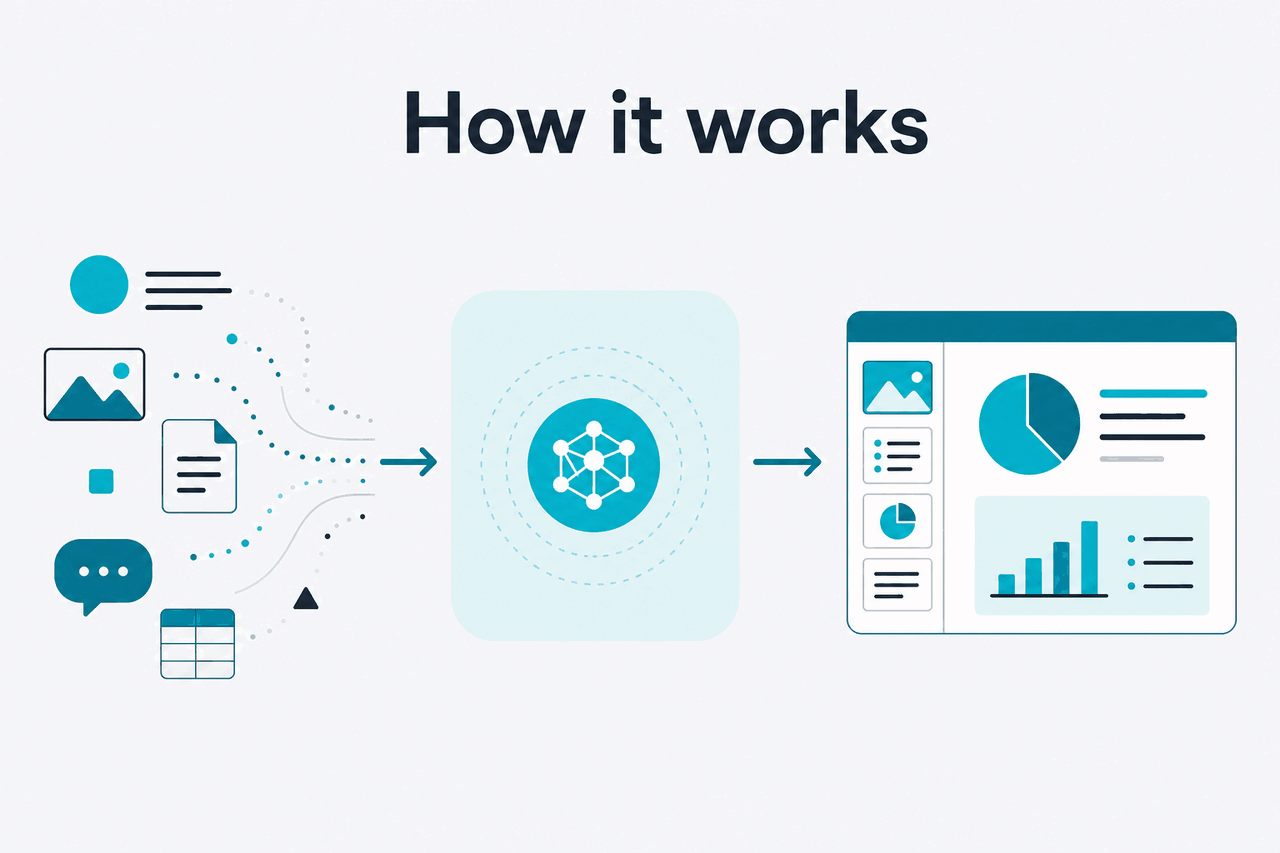
Claude reads the material you provide and responds to your instructions. That material might be a rough outline, pasted slide text, meeting notes, speaker notes, a source document, a PDF, or a supported file made available through Claude.
Claude then produces text you can use in your deck: a slide-by-slide outline, rewritten copy, presenter notes, objections, a shorter version, or comments on what is unclear.
Claude does not know your business goal unless you state it. A vague prompt such as “make this better” usually returns broad advice. A better prompt names the audience, objective, time limit, tone, required sections, and facts that must not be changed.
Start from notes
Give Claude raw notes and ask for a slide sequence before you design anything.
Review an existing deck
Paste slide titles and notes. Ask Claude to find weak logic, repetition, and missing transitions.
Adapt for a new audience
Ask Claude to rewrite the same message for executives, buyers, technical users, or internal teams.
Worked example
Turning launch notes into a sales deck outline
This works best when Claude handles structure and drafting, while a person owns facts, design, compliance, and final approval.
A practical prompt:
I am creating a PowerPoint deck for a 20-minute presentation to CFOs at mid-market software companies.

Goal: persuade them to book a follow-up demo.
Tone: direct, credible, not salesy.
Material: use the notes below.
Constraints: 10 slides maximum, no invented statistics, include likely objections.

Please produce:
1. A slide-by-slide outline
2. One sentence for the main point of each slide
3. Speaker notes for each slide
4. A list of claims that need evidence before I present
This prompt gives Claude a job, an audience, a format, and guardrails. It also asks Claude to separate draft content from claims that still need evidence. That reduces the risk of confident wording around weak facts.
If you need to compare model behavior for long source documents, see our guide to Claude models. Larger context windows can help with research packs, transcripts, or long reports. They are not always necessary for a short deck.
| Workflow | What Claude does well | What you still do in PowerPoint |
|---|---|---|
| New deck from notes | Creates structure, titles, narrative flow, and draft speaker notes | Choose layout, visuals, brand style, and final slide copy |
| Review an existing deck | Finds unclear sections, missing transitions, weak claims, and audience mismatch | Apply edits, confirm facts, and adjust slide design |
| Repurpose a deck | Adapts the message for a new audience, length, or tone | Remove irrelevant slides and rebuild visuals where needed |
| Presentation coaching | Generates likely questions, objections, and rehearsal notes | Practise delivery and decide what to say live |
When this feature actually helps

Claude helps most when the presentation problem is about message quality, not slide decoration. It is strongest when you need a clearer story, tighter language, or a second reader that can test whether the deck makes sense outside your team.
Use Claude for tasks such as:
- Building a first outline. Give Claude messy notes, a target audience, and a time limit. Ask for a slide plan before you design slides.
- Improving executive decks. Ask Claude where the argument is too detailed, where the decision ask is unclear, and which slides should move to an appendix.
- Rewriting speaker notes. Turn terse bullets into a spoken script, then shorten it for a timed presentation.
- Adapting one deck for another audience. A founder pitch, customer webinar, and board update may use the same facts but need different framing.
- Preparing for objections. Ask for likely questions from finance, legal, technical, sales, or executive stakeholders.
Use it when
- You have source material but no clear deck structure.
- You need to reduce a long presentation to a shorter version.
- You want speaker notes, Q&A prep, or audience-specific rewrites.
- You can review the output before it reaches customers or executives.
Skip it when
- You need precise slide design or animation control.
- Your organisation does not allow the source material to be shared with the tool.
- You need verified facts and citations without human checking.
- Your main problem is chart building, not messaging.
A common mistake is asking Claude to “make slides” before defining the decision the deck should support. Presentations are decision tools. Before you ask for content, define the action you want the audience to take: approve a budget, choose a vendor, join a pilot, accept a roadmap, or change a process.
Claude also works well as a critic. Paste your slide titles and ask: “What would a sceptical CFO object to?” or “Which slide is doing the least work?” This is often more useful than asking for polished copy at the start.
Technical teams can connect this work to other Claude workflows. For example, a team can turn release notes into stakeholder-friendly slides, or use the Claude API to generate deck outlines from approved product, sales, or support knowledge bases. For broader workflow ideas, see our Claude resources.
What it cannot do
Claude can improve presentation thinking, but it is not a substitute for factual review, design judgment, or private business context you have not provided. Treat its output as a strong draft, not approved final material.
- It can invent or overstate claims. Ask Claude to flag unsupported claims, then verify important facts yourself.
- It may miss brand and compliance rules. Provide your style guide, legal constraints, and required wording if they matter.
- It does not replace PowerPoint design work. Slide hierarchy, charts, spacing, icons, and visual storytelling still need human review.
- It may compress nuance too aggressively. That can help executive decks, but it is risky for legal, scientific, financial, or regulated material.
- Integration availability can vary. Anthropic lists Office integrations as beta on eligible plans, but access may differ by account or rollout.
- It cannot know what happened in a meeting unless you provide notes or transcripts. Missing context leads to generic advice.
Privacy matters. Do not paste confidential financials, customer data, health information, legal advice, or unreleased strategy into any AI tool unless your organisation has approved that workflow. For enterprise controls and compliance information, check Anthropic’s Trust Center.
Other questions readers ask
These questions usually come from the same search intent: people want to know whether Claude can work inside presentations, how much manual work remains, and whether they need a paid plan.
The honest take
Claude in PowerPoint workflows are worth using when you need better presentation thinking: a cleaner story, sharper slide titles, stronger speaker notes, and a more audience-aware argument.
Claude is less useful if you expect it to replace a designer, enforce your brand system automatically, or validate every fact without review. The safest approach is to use Claude before and during deck creation, not as the final authority.
Ask Claude to structure the deck, challenge the logic, adapt the message, and prepare objections. Then use PowerPoint for design, layout, charts, and final approval. For more common product questions, see our Claude FAQ.
Independent guide. Not affiliated with Anthropic. For the official Claude product, visit claude.ai.
Last updated: 2026-05-12